There is no single best voice typing software: the right dictation software depends on the job. For a few lines a day, the free tools built into Windows and macOS are enough.
In short:
- Windows and macOS include dictation at no extra cost: Windows voice typing (Windows key + H), Voice access on Windows 11, and macOS Dictation.
- Dictate in Word needs a Microsoft 365 subscription, on the web too, by Microsoft's own pages. Google Docs voice typing comes with Docs.
- By their makers' pages, Wispr Flow and Typally remove filler words on Windows and Mac. For Windows itself, Microsoft describes that only on Copilot+ PCs, in English.
I build Typally, and it comes up near the end. I ran no speaking test on the other tools, so nothing here is ranked by quality. Every price and feature comes from the maker's own page, opened on October 9, 2026.
People also call this speech to text software, voice to text software or a dictation app. This guide covers computers, Windows and Mac. Phone keyboards are a different job.
Which dictation software is already on your computer?
Three tools come with the system: Windows voice typing, Windows Voice access and macOS Dictation. Windows 11 lists its two under Settings > Accessibility > Speech.
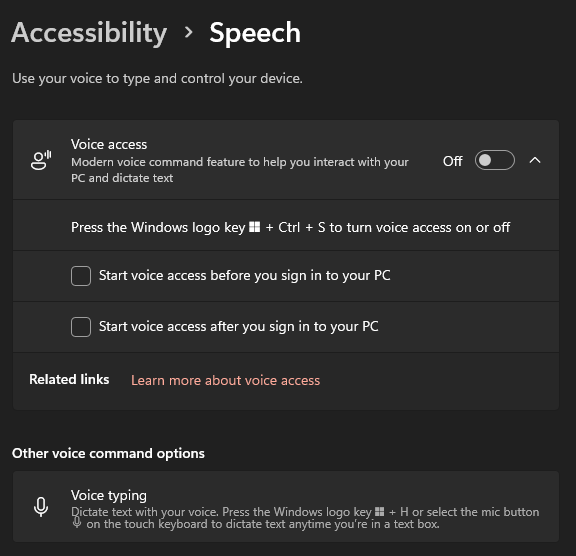
Windows voice typing. Press Windows key + H in a text box and talk. Microsoft's voice typing page covers Windows 10 and 11 and says you need "to be connected to the internet". A setting adds punctuation for you. On Copilot+ PCs, in English, Fluid dictation "automatically corrects grammar, punctuation, and filler words as you speak".
Where it stops: on other PCs the page describes no filler removal, and its settings list has no word list for your own terms. Typally vs Windows voice typing has the head-to-head.
Windows Voice access. It runs the whole PC by voice and dictates too. Microsoft's Voice access page says it lets people "control their PC and author text using only their voice and without an internet connection". Its settings include automatic punctuation and "Add to vocabulary" for your own words. Fluid dictation is there as well, "in English and only on Copilot+ PC devices".
Where it stops: it needs Windows 11, version 22H2 or later. The setup page lists 15 languages and dialects, and setup needs a connection once.
macOS Dictation. Apple's Dictation page says "you can speak to enter text anywhere you can type it". In supported languages it adds commas, periods and question marks for you.
Where it stops: Apple's page says nothing about removing filler words or a word list of your own. Dictation has no time limit, but it stops by itself after 30 seconds with no speech. To run the whole Mac by voice, Apple has Voice Control.
Windows 10 and other Windows tools are in Dictation Software for Windows. Other Mac apps are in Dictation Software for Mac.
Which voice typing comes inside Google Docs and Word?
Both apps have their own dictation, and each stays inside its maker's apps.
Google Docs voice typing. Click Tools, then Voice typing. Google's help page says it works in "the latest versions of" Chrome, Edge and Safari, on a Mac or a PC. You add punctuation by saying it ("Period", "Comma"), and Google warns that punctuation "might not be available in every language". The page says nothing about filler words.
That help page names no price. Google's Docs page says: "Anyone with a Google Account can create in Docs." Where it stops: it types in a Docs document or in Slides speaker notes. See voice typing in Google Docs, or speech to text Chrome extensions if you write only in Chrome.
Dictate in Word. Go to Home > Dictate. Microsoft's Dictate page says the feature "is only available to Microsoft 365 subscribers". The Word for the web page says the same: "Make sure you're signed in with an active Microsoft 365 subscription." As of October 2026, Microsoft 365 Personal is $9.99 a month or $99.99 a year.
Dictate has an Auto Punctuation setting, and the page says nothing about filler words. Where it stops: it needs a "reliable internet connection", and it types in Word. If you already subscribe, use it: voice typing in Word.
What do dictation apps add to the built-in tools?
They add cleanup on both systems, work with no connection, or voice commands for an office. Four are below, and Typally comes after them.
Handy. Its page calls it "the free and open source app for speech to text", and its download page has installers for Windows and Mac. It promises: "Your voice stays on your computer." Where it stops: the page describes "One tool, one job", and says nothing about filler words or punctuation.
Wispr Flow. Its site says it "automatically removes filler words, adds punctuation, and formats your writing", wherever your cursor is. It runs on Windows, Mac and phones. As of October 2026, its pricing page shows a free plan with 2,000 words a week on desktop. Pro is $15 per user a month, or $12 a month billed yearly.
Where it stops: the weekly cap on the free plan, and its privacy page says "Transcription always happens in the cloud". Typally vs Wispr Flow compares the two.
Superwhisper. Its page promises "Voice to text that works in any app" and adds "No Wi-Fi, no problem." It runs on Windows, Mac and phones. As of October 2026 it lists a free tier and Pro at $8.49 a month, with yearly and lifetime options. Where it stops: "Offline models only run really well on Apple Silicon macs." The page promises "polished text" and names no filler words.
Dragon Professional. Nuance's product page is headed "Dragon Professional (Windows)", and version 16 runs on Windows 11 and 10. It describes "custom voice commands", macros and typing out recordings. Where it stops: Windows only, nothing about filler words, and no price as of October 2026, only a "Contact us" button. Dragon NaturallySpeaking Alternatives covers who should still buy it.
How does the voice typing software compare side by side?
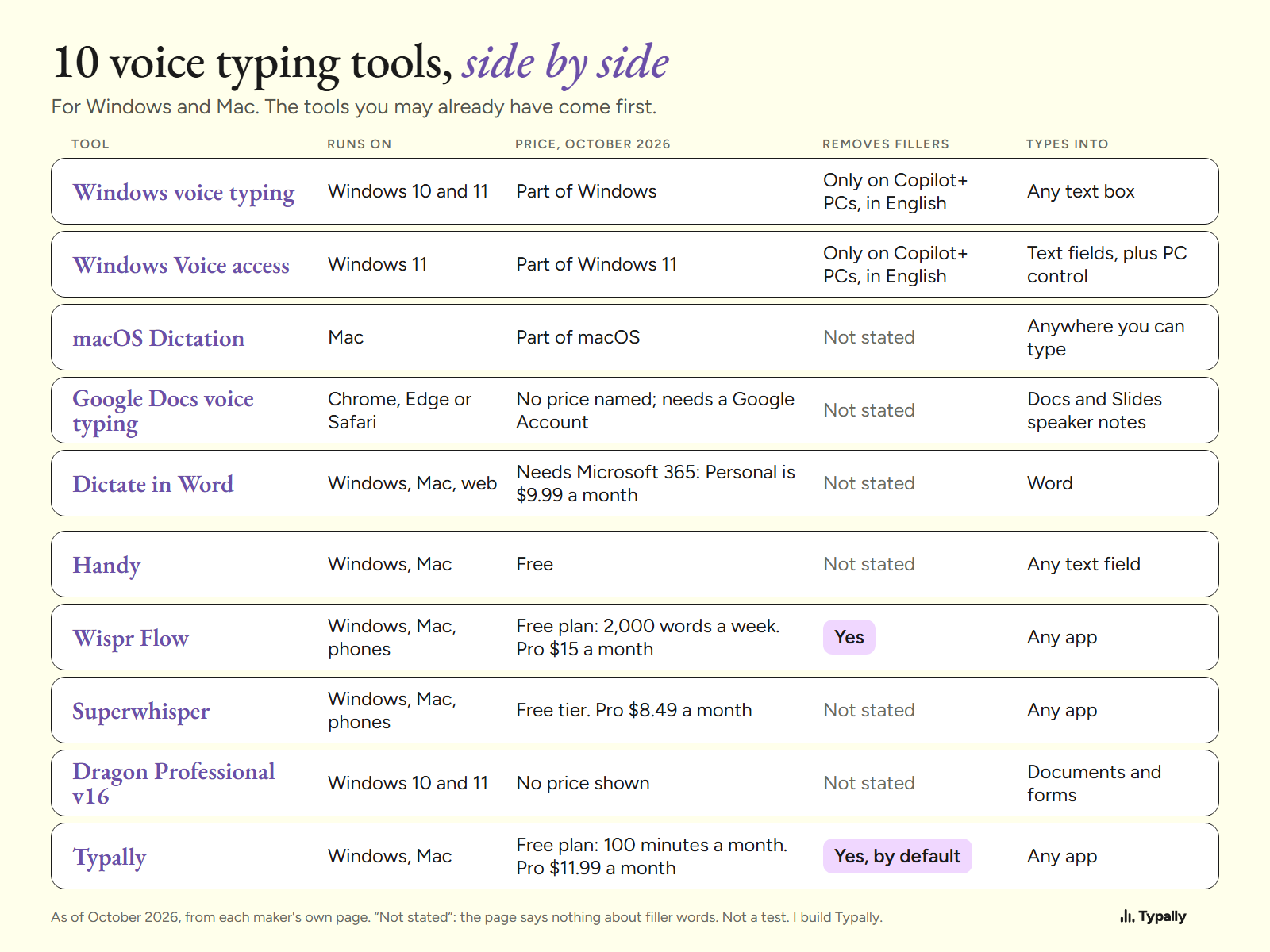
All 10 are below, on the same 5 fields.
| Tool | Runs on | Price, October 2026 | Removes fillers | Types into |
|---|---|---|---|---|
| Windows voice typing | Windows 10 and 11 | Part of Windows | Only on Copilot+ PCs, in English | Any text box |
| Windows Voice access | Windows 11 | Part of Windows 11 | Only on Copilot+ PCs, in English | Text fields, plus PC control |
| macOS Dictation | Mac | Part of macOS | Not stated | Anywhere you can type |
| Google Docs voice typing | Chrome, Edge or Safari | No price named; needs a Google Account | Not stated | Docs and Slides speaker notes |
| Dictate in Word | Windows, Mac, web | Needs Microsoft 365: Personal is $9.99 a month | Not stated | Word |
| Handy | Windows, Mac | Free | Not stated | Any text field |
| Wispr Flow | Windows, Mac, phones | Free plan: 2,000 words a week. Pro $15 a month | Yes | Any app |
| Superwhisper | Windows, Mac, phones | Free tier. Pro $8.49 a month | Not stated | Any app |
| Dragon Professional v16 | Windows 10 and 11 | No price shown | Not stated | Documents and forms |
| Typally | Windows, Mac | Free plan: 100 minutes a month. Pro $11.99 a month | Yes, by default | Any app |
"Not stated" means the maker's page says nothing about filler words. The tool may still remove them.
Which tool fits which job?
Start from the job you do most, then pick a tool whose maker says it does that job.
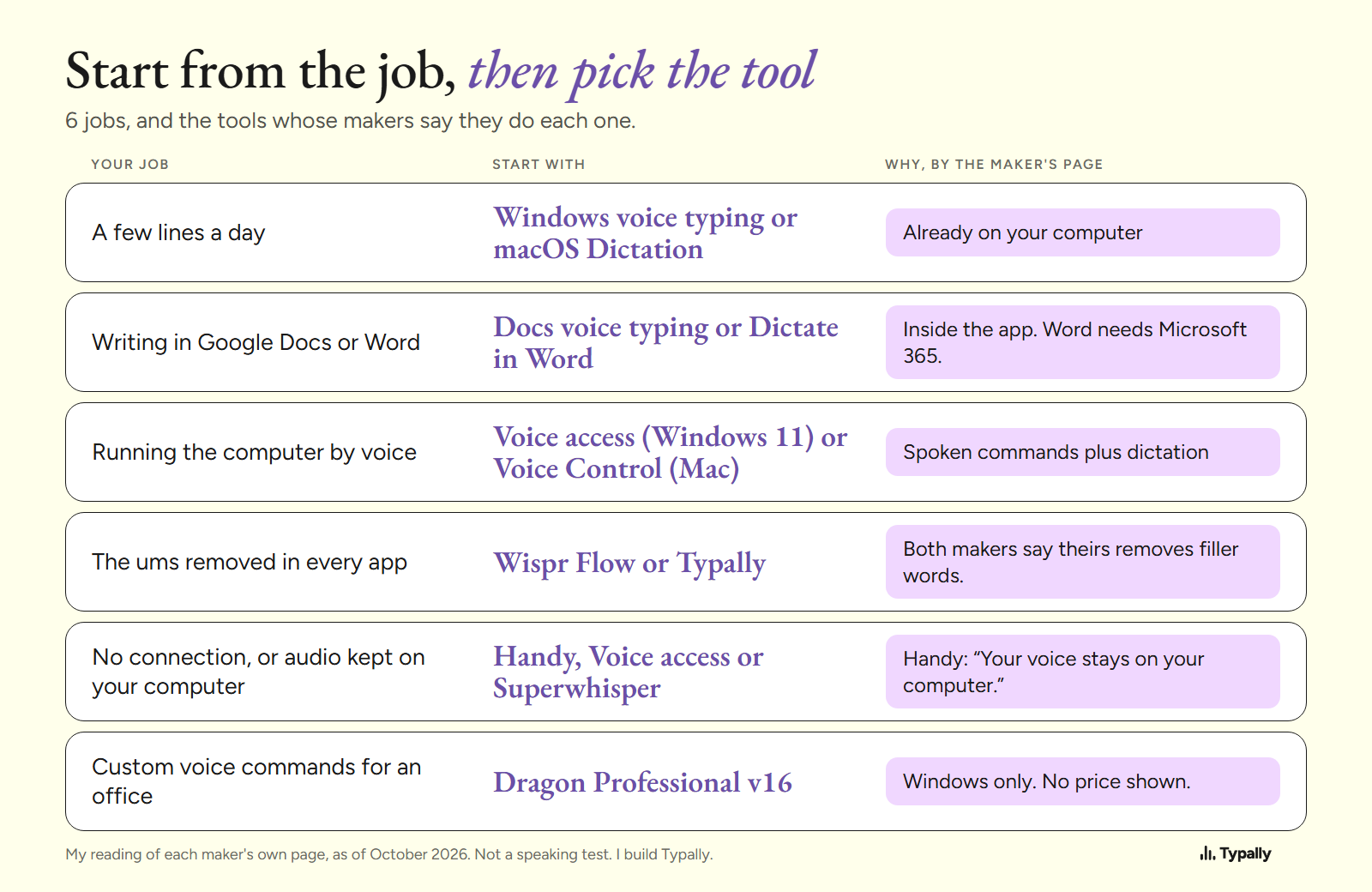
- A few lines a day. Stay with Windows voice typing or macOS Dictation. Both are already there, and both can add punctuation.
- Writing in Google Docs or Word. Use the voice typing inside Docs, or Dictate in Word if you pay for Microsoft 365.
- Running the computer by voice. Use Voice access on Windows 11 or Voice Control on a Mac. Both take spoken commands and dictate.
- The ums removed in every app. On a Copilot+ PC, in English, Microsoft says Windows already does it. On other PCs and on a Mac, the makers of Wispr Flow and Typally say theirs do.
- No connection, or audio kept on your computer. Handy and Voice access recognize speech on the computer itself. Superwhisper says "No Wi-Fi, no problem."
- Custom voice commands for an office. That is Dragon Professional's job, on Windows.
For long drafts or a book, see Best Dictation Software for Writers. For every other route, see Speech to Text on a Computer.
What does removing filler words look like?
It looks like the same message with the fillers gone and the punctuation added. I wrote a 51-word email with fillers in it, then ran Typally's cleanup on it on October 5, 2026.
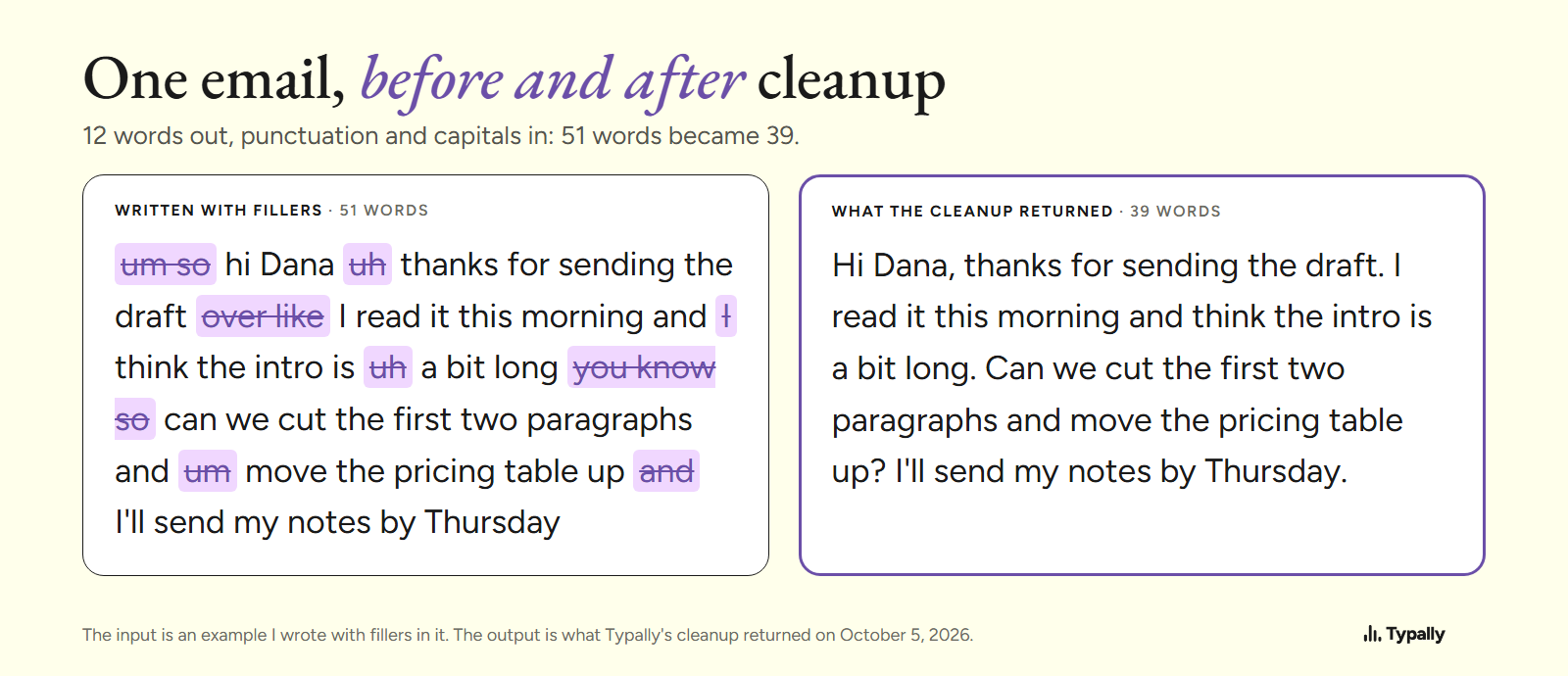
The cleanup took out um twice, uh twice, so twice, like and you know. It also dropped 3 small words: "over", one "I" and one "and". It added the punctuation and capitals, and 51 words became 39.
That is one app on one written example, not a comparison. AI Dictation explains how cleanup works and what it gets wrong. Speech Recognition Software covers what affects accuracy.
Where does Typally fit?
Typally, voice typing for Mac and Windows, fits people who write in many apps all day and want the cleanup on either system. Hold your shortcut key, talk, let go, and the text appears where the cursor is: in ChatGPT, Claude, Gmail or Slack.
The cleanup is on by default: it removes the ums and fixes the punctuation and capitals. It has a custom vocabulary and 100 dictation languages. The free plan has 100 minutes of dictation a month, forever. Pro is $11.99 a month with a 14-day free trial; the trial needs a card. Or $96 a year.
Where it stops: it needs an internet connection, and it runs only on Windows and Mac. It listens only while you hold the key. The audio is discarded after transcription, and your transcripts and history stay on your computer.
I use it for prompting AI. By September 30, 2026, I had dictated 476,777 words with it, by its own count. For a few lines a day, the tool built into your computer is the better pick.
Download Typally free at typally.com for Windows or Mac. The free plan gives you 100 minutes a month and doesn't ask for a card.
What else do people ask about dictation software?
Is there a free dictation software?
Yes. Windows voice typing, Voice access and macOS Dictation come with the system, and Handy is free. Wispr Flow, Superwhisper and Typally have a free plan or tier with limits; Free Speech to Text Software lists them.
Is Microsoft Dictate free?
Not by Microsoft's own pages. They say Dictate in Word "is only available to Microsoft 365 subscribers", and the web version asks for an active subscription too. Windows voice typing (Windows key + H) is the one that comes with Windows.
What is the best speech to text app for Windows and Mac?
I ran no test, so I name no winner. 6 of the 10 run on both systems: Google Docs voice typing, Dictate in Word, Handy, Wispr Flow, Superwhisper and Typally.