A speech to text Chrome extension types what you say into text boxes on web pages, and only inside Chrome. On Windows or a Mac, the dictation your computer already has types into Chrome too, free.
In short:
- An extension works only in the browser. One maker says it plainly: "At this time, Voice In only works within the browser."
- Windows key + H and Mac Dictation are free and type into Chrome's text boxes, with nothing added to Chrome. Google Docs has its own voice typing under Tools.
- Before you add an extension, read the warning Chrome shows. Google's own list rates access to "your data on all the websites you visit" as a medium alert.
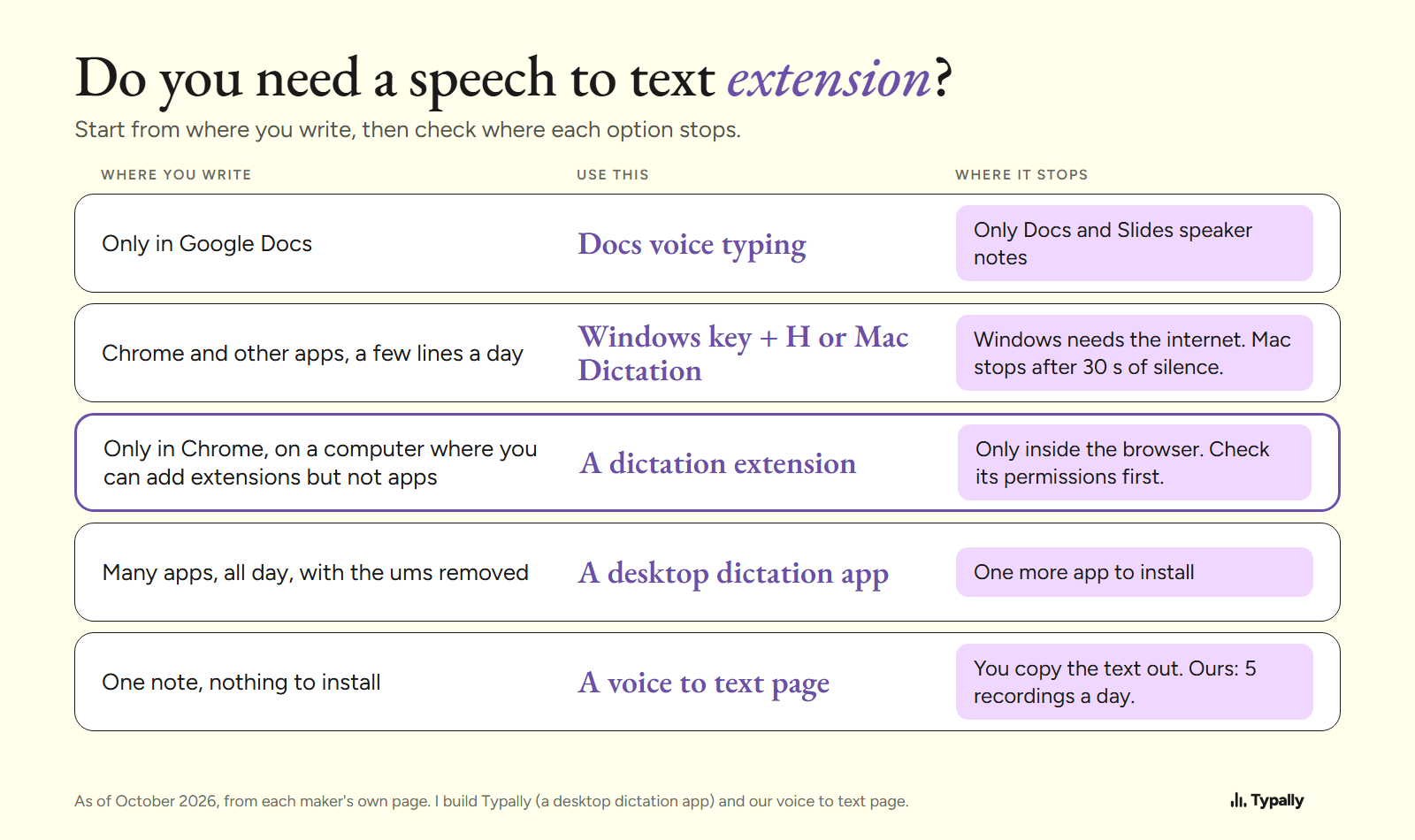
People also call it a voice to text, voice typing or dictation Chrome extension. I build Typally, a desktop dictation app, and it comes up near the end. Facts about other tools are from their makers' pages, read on October 9, 2026, not from my own tests.
What can a speech to text Chrome extension do?
It types your words into text fields on web pages, such as Gmail, Google Docs or ChatGPT in a Chrome tab. It can't reach apps outside the browser.
Take Voice In, as of October 2026. Its Chrome Web Store listing says it lets you "type with your voice in nearly any text field on the web". Its own site answers the desktop question: "At this time, Voice In only works within the browser." The free version "only allows 60 minutes of dictation per day", and Voice In Plus costs $9.99 a month or $59.99 a year.
Some extensions leave the speech itself to the browser. Voice In's privacy page says: "All the audio is transcribed by the browser (Google Chrome or Microsoft Edge)." As of October 2026, SpeechAgent's listing says it uses "the built-in speech recognition engine of your browser". Google says the same of its own Docs voice typing: "your web browser controls the speech-to-text service."
How do you voice type in Chrome without an extension?
Use the dictation built into your computer. To Windows and macOS, Chrome is one more app with text boxes.
On Windows 11, click in a text box and press Windows key + H. Microsoft's voice typing page lists 3 needs: "you'll need to be connected to the internet, have a working microphone, and have your cursor in a text box."
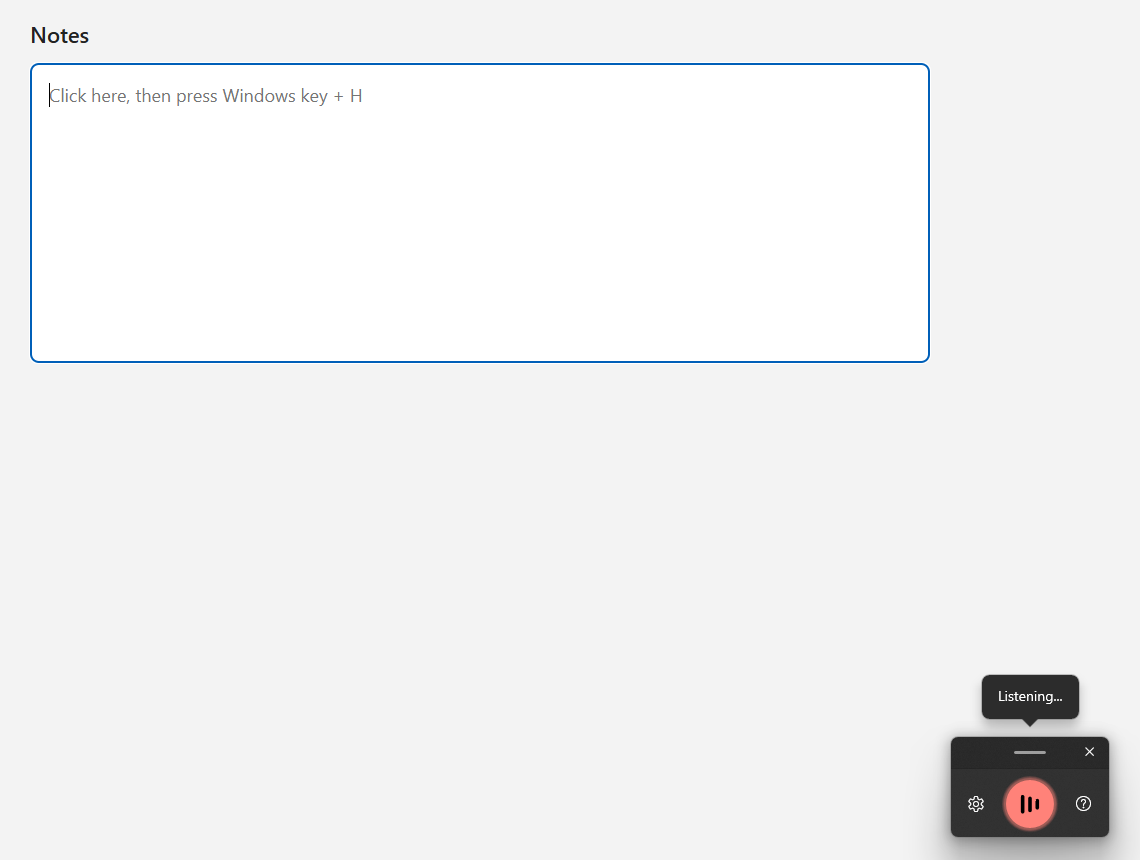
On most PCs, the ums stay in. Microsoft describes Fluid dictation, which "automatically corrects grammar, punctuation, and filler words as you speak". It calls it "a new feature in Voice typing on Copilot+ PCs", in English. See also Windows voice typing not working and voice typing shortcut keys.
On a Mac, turn Dictation on once. Apple's Dictation page gives the steps: choose Apple menu > System Settings, click Keyboard, then go to Dictation and turn it on. Then press the Microphone key (if your Mac has one), use the Dictation shortcut, or choose Edit > Start Dictation.
Apple says you can "speak to enter text anywhere you can type it". Dictation stops "when no speech is detected for 30 seconds". If it won't start, see Mac Dictation not working.
In Google Docs, click Tools, then Voice typing. Google's help page says it works in "the latest versions of" Chrome, Edge and Safari. It types in a document or in Slides speaker notes, and nowhere else. See voice typing in Google Docs and Google Docs voice typing not working.
For one note, a browser page needs nothing installed. Our free voice to text tool allows "5 recordings per day, no signup", and you copy the text out. Speech to text on a computer covers every option.
What should you check before you add a speech to text extension?
Six things, from what it can read to what else it needs.
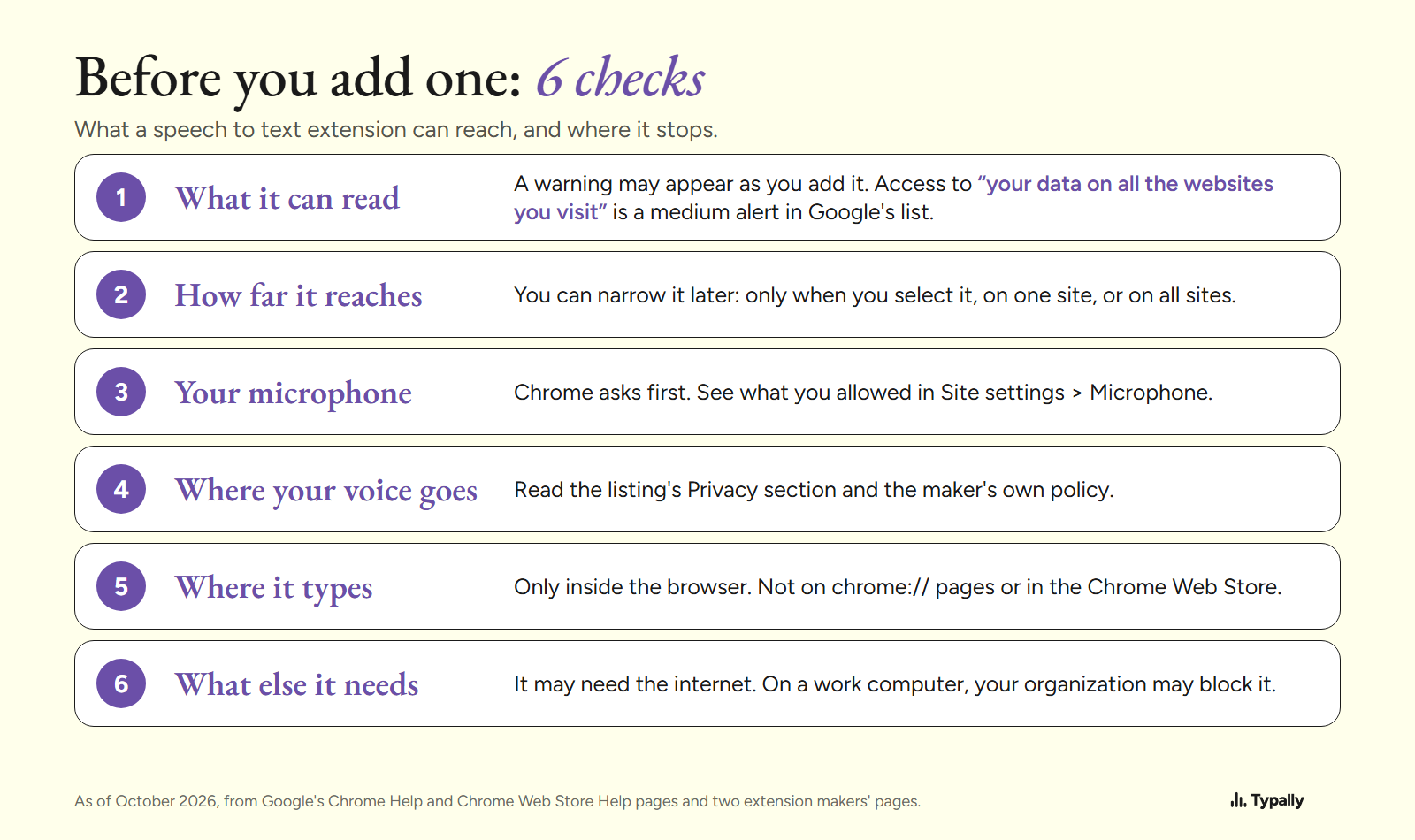
What it can read. As you add an extension, Chrome may show a warning. Google's Chrome Web Store help says: "The warning doesn't mean the app is dangerous, just that it can be." Access to your data on all websites lets it "read, request or modify data from every page you visit (bank account, Facebook)". A tool that types into any site has to change those pages, so expect this warning.
How far it reaches. You can narrow it after install. Google's extensions help lists 3 settings: "When you select the extension", "On [current site]" and "On all sites". The first lets it work only on the open tab, and only when you select it.
Your microphone. Chrome asks before a site uses it. Its microphone help page lists the choices: "Allow while visiting the site, Allow this time, or Never allow." You can review them in Settings > Privacy and security > Site settings > Microphone.
Where your voice goes. The listing has a Privacy section, where the maker "has disclosed the following information regarding the collection and usage of your data". Read it, then the maker's own policy.
Where it types. Only in the browser, and not on every page there. Speech Recognition Anywhere's listing, as of October 2026, notes that extensions can't work on chrome:// pages or the Chrome Web Store: "This is a restriction imposed by the browser."
What else it needs. Voice In's site says it "requires a working internet connection and does not work offline." On a work computer, Google notes that "your organization might block some extensions".
When is an extension the better pick?
When you write only in Chrome, on a computer where you can add extensions but not apps. An extension also follows you between computers. Google's extensions help says: "To use your extensions on any computer, sign in to Chrome."
Some extensions also control the browser by voice. Speech Recognition Anywhere's listing says you can "Click on links and buttons with your voice".
The built-in tools are the better pick for a few lines a day. They also reach Word, Slack's app and a terminal. They cost nothing, and no extension gets access to your sites.
What does a desktop dictation app add?
It types into Chrome and every other app on your computer, from one key. Some also clean up the text before it lands.
Here is one Typally cleanup, run on October 7, 2026, on a 73-word prompt I wrote with fillers in it. It took out um twice, uh twice, like, you know and two "so"s, added punctuation, and returned 62 words.
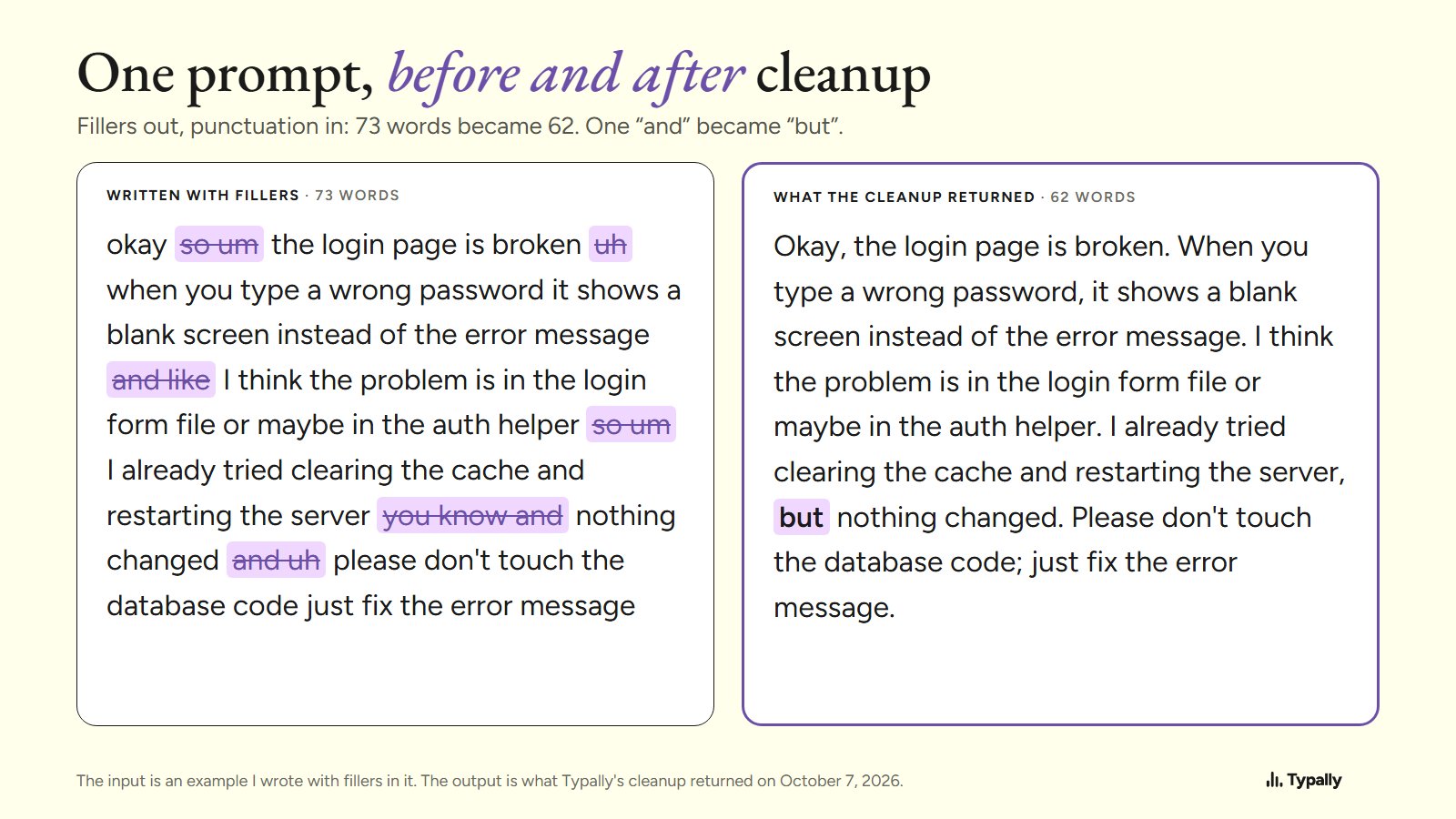
That is one app on one written example, not a comparison.
Where does Typally fit?
Typally, voice typing for Mac and Windows, is a desktop app, not an extension. Hold your shortcut key, talk, let go, and the text appears where the cursor is. That can be Gmail or ChatGPT in a Chrome tab, or Slack and Notion on the desktop. Nothing is installed in Chrome; voice typing in Chrome has the steps.
The cleanup is on by default: it removes the ums and fixes the punctuation and capitals. It needs an internet connection. It listens only while you hold the key. The audio is discarded after transcription, and your history stays on your computer.
I use it for prompting Claude and ChatGPT. By September 30, 2026, I had dictated 476,777 words with it, by its own count.
If you write only in Chrome on a computer that blocks apps, use an extension instead.
Download Typally free at typally.com for Windows or Mac. The free plan gives you 100 minutes a month and doesn't ask for a card.
What else do people ask about speech to text Chrome extensions?
Is there a free speech to text Chrome extension?
Yes. As of October 2026, Voice In's free version allows 60 minutes of dictation a day. Windows key + H and Mac Dictation are free too, and they type into Chrome with no extension.
Do you need an extension for Google Docs?
No. Docs has its own voice typing under Tools, in the latest Chrome, Edge and Safari.
Does a speech to text extension work offline?
Check its own page. Voice In's says it "does not work offline". Windows voice typing and Typally need a connection too.