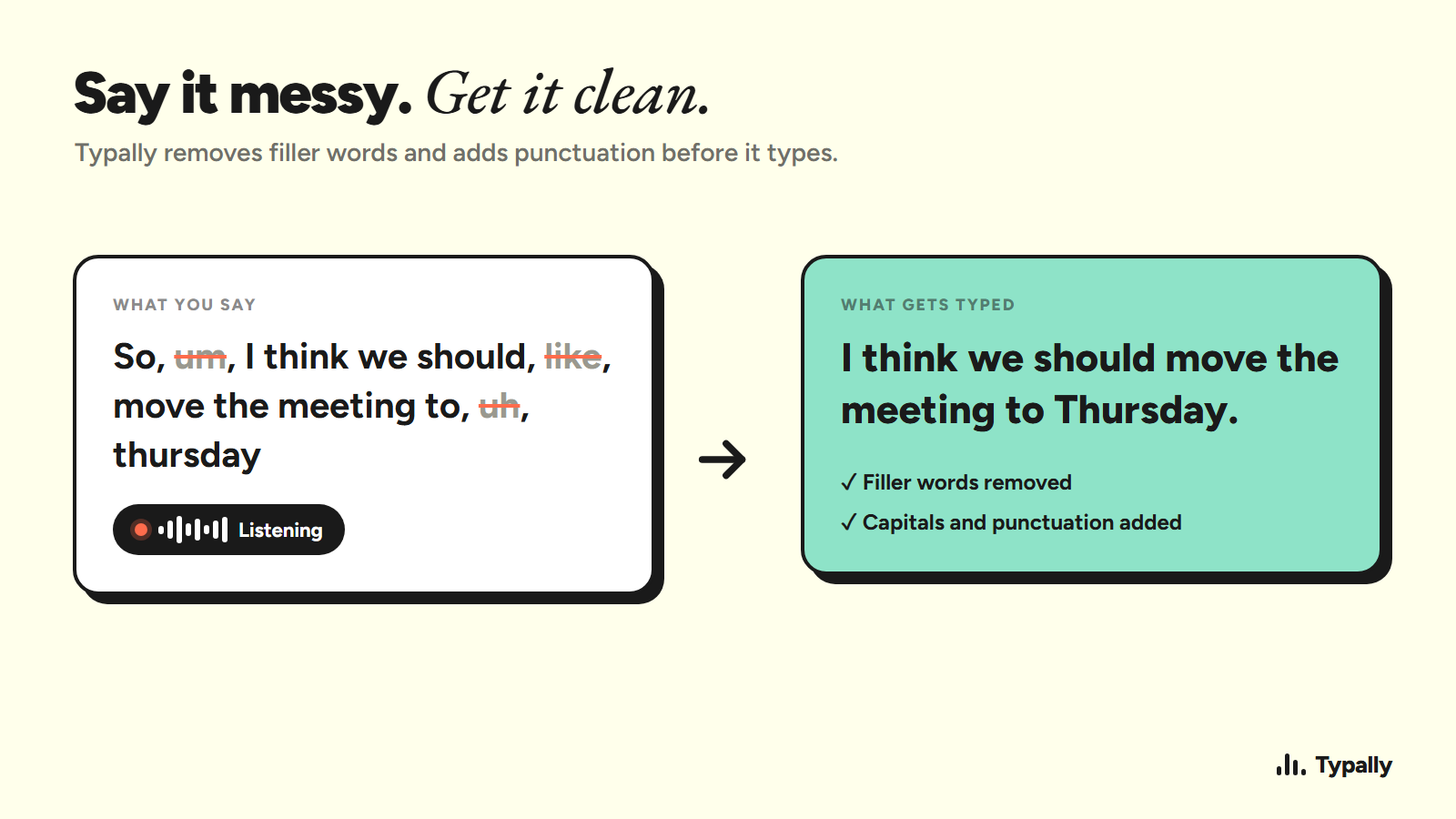
A good idea can arrive faster than your hands can type it. Dictation helps you get that first draft down by speaking, but the right app should also fit where you write and how much editing you’re willing to do.
Here are seven picks for writers, starting with Typally for cross-app dictation on Windows and Mac.
Table of Contents
- Typally
- Dragon Professional Individual by Nuance: high-accuracy Windows dictation
- Google Docs Voice Typing: a free option for browser-based writing
- Willow Voice: cross-device dictation with custom vocabulary
- Superwhisper: private, on-device dictation for Apple Silicon
- Typeless: a generous free tier for regular dictation
- Handy: free, open-source dictation with local processing
- Frequently Asked Questions About Dictation Software for Writers
- Conclusion
1. Typally
Typally is a speech-to-text app for Windows and Mac that turns your speech into clean text in the app you’re already using. It’s a strong fit if you write across email, documents, browser editors, or long prompts and don’t want to keep copying text between tools.
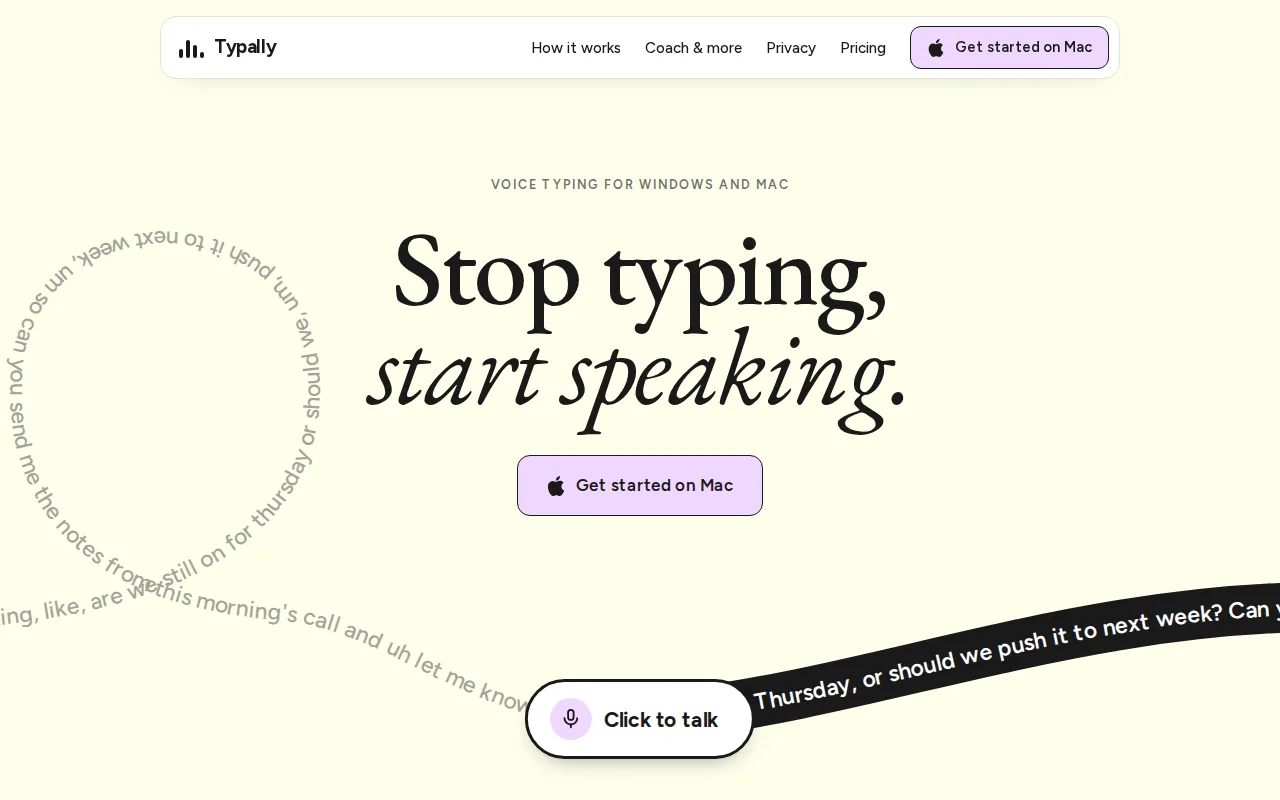
Hold a key, speak, then let Typally turn your words into text. Its Whisper large-v3 transcription model works with an AI cleanup pass, so you can speak naturally rather than dictate every comma. For example, “Um, I wanted to, you know, check on the draft” can become “I wanted to check on the draft.” Check the result before sending, especially when names or exact wording matter.
Custom vocabulary helps with words the app may not know, such as a client name or a niche term. Typally also supports direct use in coding editors such as Cursor, VS Code, and Windsurf. That IDE support is useful when a prompt or note needs to go straight into the editor where you’re working.
Privacy is part of the choice too. Typally stores history, stats, and coaching data locally, sends your audio over an encrypted connection, and discards the audio as soon as it becomes text. Transcription runs in the cloud, so you need an internet connection while you dictate.
Typally also tracks vocabulary and filler words to help you learn English while you dictate. That can give you a way to notice repeated habits over time, rather than only fixing them in a single draft.
If you write in a particular editor, the app still sends text wherever your cursor is. For instance, dictating in Scrivener means placing the cursor in the intended field before you speak. That small check can save a cleanup pass in the wrong box.
Typally has a free plan with 100 minutes a month. It’s a useful way to test whether speaking fits your writing rhythm before you change your whole process.
2. Dragon Professional Individual by Nuance: high-accuracy Windows dictation
Dragon Professional Individual by Nuance is Windows dictation software for writers who need fine control or work with specialized terms. It may suit technical writers or authors who dictate often and want to build a vocabulary around their subject.
Dragon’s reported accuracy is 99%. That figure makes it a notable option for Windows users, but accuracy alone doesn’t tell you how much editing a draft needs. A dictated chapter can still need a close read for punctuation, names, and sentences that sounded clear aloud but look awkward on the page.
Custom vocabulary is one of its useful writer-focused features. You can add terms from a specialized field, then use voice commands to insert frequent text or handle repetitive tasks. For example, a technical writer can add product terms that a general speech model may not recognize. Authors with recurring names can add those as well.
The main trade-off is focus. Dragon is aimed at Windows users who want high-volume dictation and customization. If you switch between Mac and Windows, or want a lighter way to dictate across your apps, compare how each tool fits your actual setup before you commit.
It’s also worth separating recognition from cleanup. A strong speech-to-text result captures what you said. It doesn’t automatically mean the passage reads like finished prose. Plan to review the text, particularly when you dictate dialogue or technical instructions.
Choose Dragon when its Windows focus and custom vocabulary match your daily work. If you only dictate now and then, a free built-in option may be enough to test the habit first.
3. Google Docs Voice Typing: a free option for browser-based writing
Google Docs Voice Typing is a free browser-based choice for writers who draft in Google Docs and want multilingual support. It works best when your writing already lives in that document editor, rather than across many different apps.
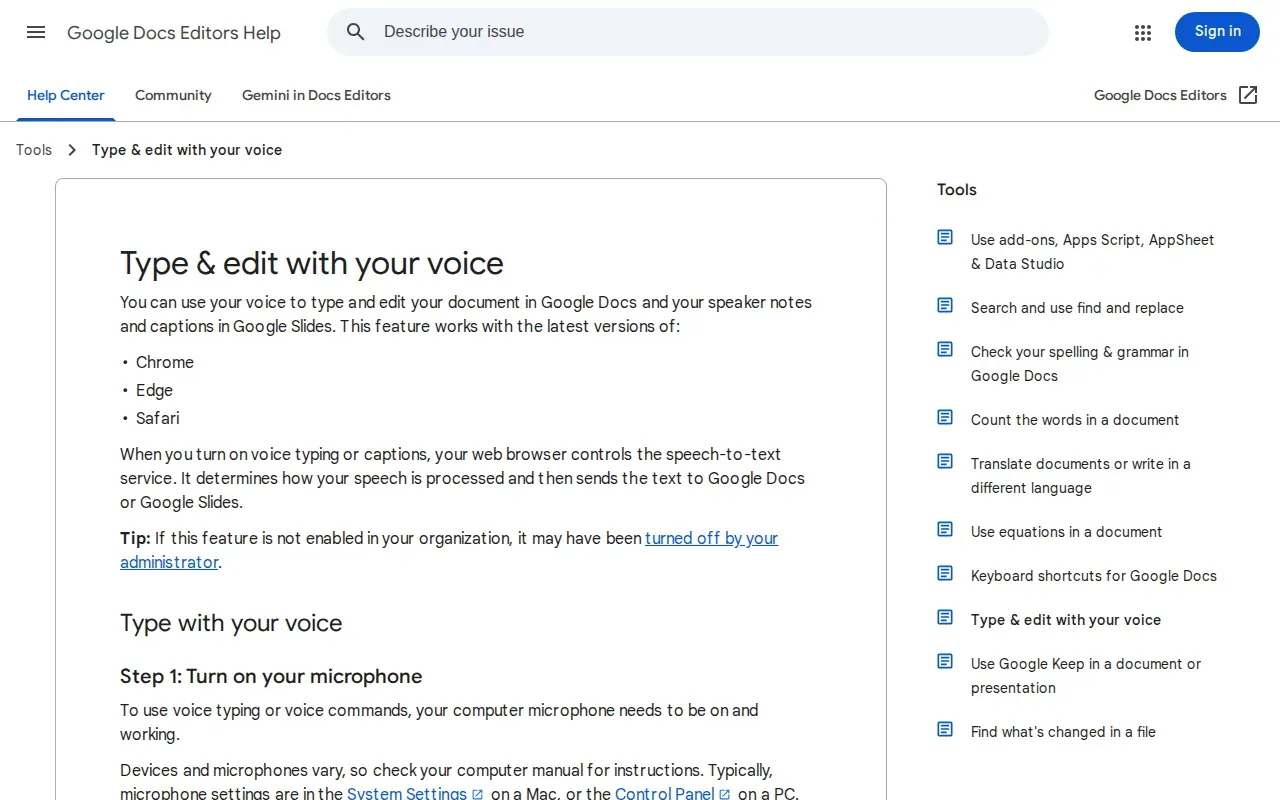
It doesn’t work offline, so a web connection is part of the deal. For a blog draft or a class assignment in Docs, that can be a simple starting point. For a long writing session away from a reliable connection, it’s a poor fit.
Dictation and transcription are related, but they solve different jobs. Dictation turns your current speech into text as you compose. Transcription turns an existing recording into text. Speech recognition is the broader process of a computer recognizing spoken language, which helps explain why a tool’s accuracy doesn’t guarantee a polished draft.
Voice typing can also let you keep working in the document while the tool listens. Use spoken punctuation or formatting commands when you know the wording it expects. If that feels fussy, dictate a full thought first and edit it with the keyboard after. The second approach is often easier for a first draft than stopping to fix every small issue.
Google Docs Voice Typing is a sensible first test if you want to see whether speaking suits your writing. It has a clear limit: its browser and document focus may not suit writers who move between several apps.
4. Willow Voice: cross-device dictation with custom vocabulary
Willow Voice is dictation software for Mac, Windows, and iOS. It may fit writers who move between a desktop and an iPhone and want custom vocabulary across their workflow.
Willow Voice reports 98%+ accuracy and supports custom vocabulary. It also has offline capability on Mac and iOS, but not Windows. That split matters if you want to dictate during travel or in a spot with no connection: check which device you’ll actually use before you rely on offline mode.
For a writer, custom vocabulary can help with recurring names or specialized terms. If you work on a novel, for example, character names may need more help than common words. A vocabulary list can reduce that friction, though it doesn’t remove the need to proofread the final text.
Cross-device use is the draw here. You can keep the same general dictation habit when you move between supported devices. The caveat is platform coverage: it runs on Mac, Windows, and iOS, and offline use is limited to Mac and iOS.
Willow Voice is worth considering if custom vocabulary and device switching matter more than a single-platform setup. In any writer’s workflow, test a few pages of your own material before trusting the output with a final draft.
5. Superwhisper: private, on-device dictation for Apple Silicon
Superwhisper runs Whisper models on Apple Silicon through the Neural Engine. It’s a fit for Apple Silicon users who want on-device dictation and offline use.
Superwhisper’s reported accuracy is 95%+, and it supports offline dictation. Its local-only processing model is the key difference for writers who don’t want their dictation sent to a cloud service. That can matter when you’re speaking about sensitive work, though it’s still wise to check the app’s current settings and data terms yourself.
Local processing comes with a device requirement: it needs Apple Silicon. If you write on a Windows PC, this isn’t the matching choice. If you do use a compatible Mac, offline use means you can keep dictating without a network connection.
Think about the kind of draft you’re making. A personal journal entry or an early chapter may benefit from a local workflow. But if your top concern is automatic cleanup or learning custom terms, compare the features you need rather than choosing on privacy alone.
Superwhisper suits writers who value local processing and work on compatible Apple hardware. The offline advantage won’t help if your main writing machine runs another system.
6. Typeless: a generous free tier for regular dictation
Typeless is a dictation option for Mac, Windows, iOS, Android, and web browsers. Its free tier allows 8,000 words a week, which may suit writers who dictate often and want room to try the workflow.
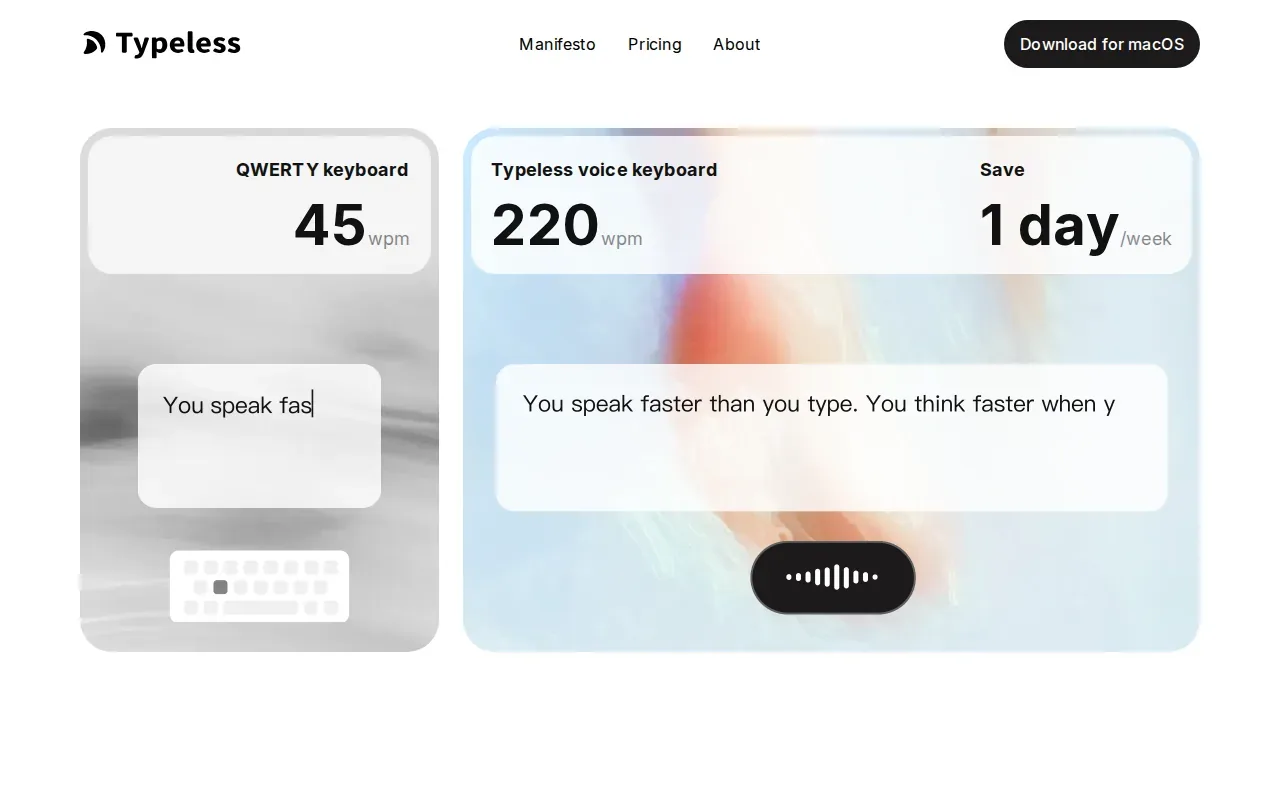
Typeless has no offline capability. Its privacy model says it doesn’t retain data, and it doesn’t train models on user data. Those points may matter if you’re weighing an online service against an offline tool. Still, online use means you need a connection when you dictate.
Its broad device support makes it easier to consider if you switch between a computer and a mobile device. But device coverage isn’t the same as a perfect fit for every writing app. Test the place where you do most of your work, then see whether the resulting text needs much editing.
A free word allowance can help you test a real routine rather than a short demo. Try dictating a few daily tasks, such as an email draft or a section of a blog post, and note where corrections keep coming up. That tells you more than a quick test sentence.
Typeless is a reasonable pick when the free weekly allowance and device range match your needs. Skip it if offline access is a must.
7. Handy: free, open-source dictation with local processing
Handy is a free, open-source dictation app with local-only processing. It may suit privacy-minded writers who want an offline tool without a paid plan.
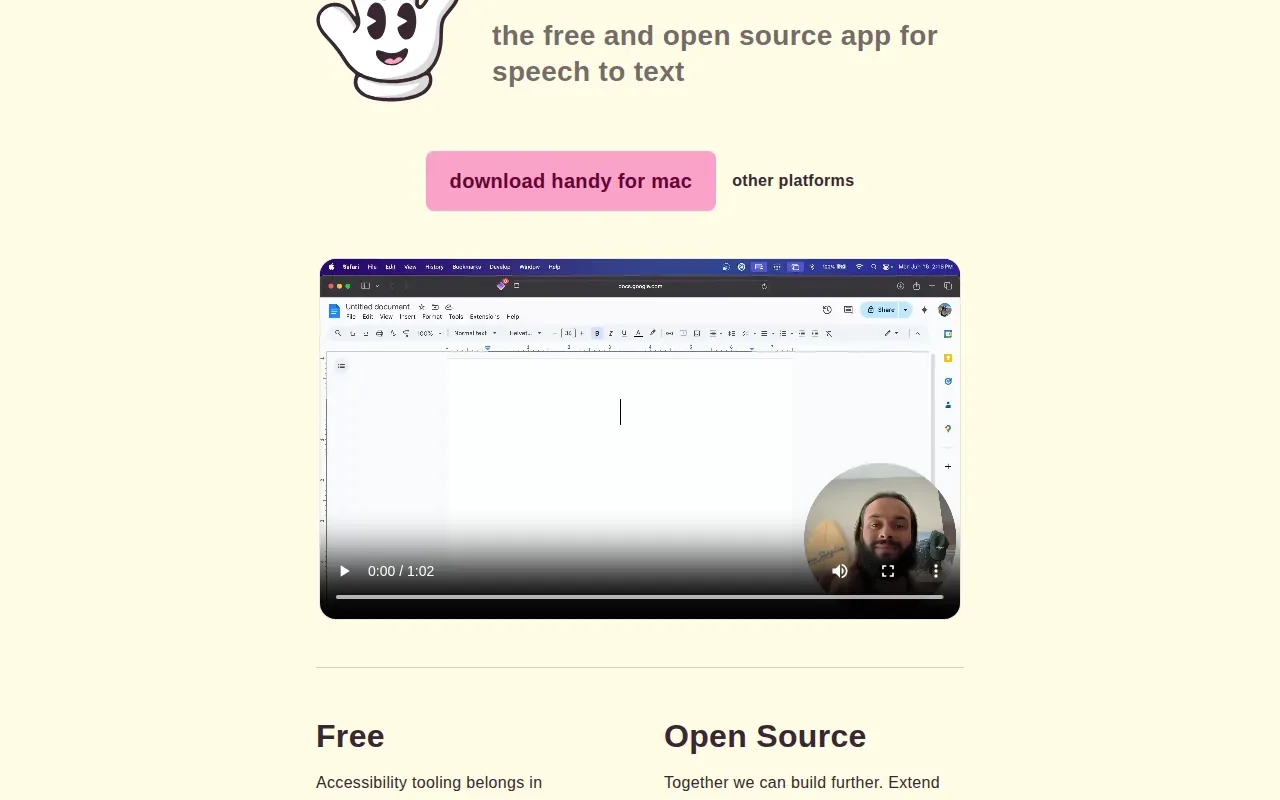
Local processing means the app does its work on your device. Handy’s offline support can help if you write somewhere with a weak or absent connection. Open-source code also gives people a way to inspect the software, though that doesn’t replace checking whether a given build fits your device and workflow.
| What you care about | Why Handy may fit | What to check |
|---|---|---|
| No paid app | Handy is free. | Confirm it runs on your computer. |
| Dictating without internet | It supports offline use. | Try it where you plan to write. |
| Local handling | Processing is local-only. | Review the project and build you install. |
| Polished prose with less editing | Handy doesn’t advertise a cleanup pass. | Proofread a sample in your own writing style. |
That last row is important. A privacy-first tool may still need more editing than a tool with a cleanup pass. For fiction, a clean first draft may matter more than a small gain in setup simplicity. For private notes, local processing may be the main concern.
Handy is the clearest match here for free, local dictation. The trade-off is that Handy doesn’t publish accuracy figures or advertise custom vocabulary, so test it with your own terms before using it for a high-stakes draft.
Hold a key, say it, and Typally types clean text in any app on Windows or Mac. Download Typally free: free plan, 100 minutes a month.
Frequently Asked Questions About Dictation Software for Writers
What is the best dictation software for writers?
Typally is a strong first pick if you write across apps on Windows or Mac and want cleanup, custom vocabulary, and direct use in writing editors. Writers who need offline dictation may prefer a local option such as Superwhisper or Handy. The best fit depends on your device, privacy needs, and how much editing you want after speaking.
Is dictation faster than typing?
Dictation can help you get words down without typing each one, but your pace depends on how quickly you speak and how often you stop to edit. Try a short session with a real task, such as an email or a few paragraphs. Compare the time spent speaking with the time spent cleaning up the text.
Can dictation software write a novel?
Yes, dictation software can help you draft a novel, but it won’t plan or revise the story for you. Writers can speak scenes or chapters, then edit the result in their writing app. Custom vocabulary may help with character names or invented terms. Always read the text back for dialogue, punctuation, and names.
What’s the difference between dictation and transcription?
Dictation turns speech into text as you compose; transcription turns an existing recording into text. A writer who speaks a new blog draft is dictating. A writer who converts a recorded interview into text is transcribing, and you can turn a recording into text free. Some software may handle both tasks, but check the specific workflow before choosing a tool.
Can I dictate offline?
Yes, some of these tools support offline dictation, but not all. Superwhisper and Handy both work offline. Willow Voice supports offline use on Mac and iOS, while Google Docs Voice Typing and Typeless don’t. Typally works online, so choose based on the device and connection you expect to have.
Conclusion
For cross-app writing on Windows or Mac, start with Typally’s free plan and test it on a real draft. If you need offline dictation, try a local option instead. The best test is simple: speak for a few minutes, then see how much editing the text needs.