The voice typing shortcut on Windows 11 and 10 is Windows key + H, pressed with your cursor in a text box. On a Mac, press the Microphone key or Fn-D.
In short:
- Windows: Windows key + H starts voice typing in a text box. Windows key + Ctrl + S turns Voice access on or off, by the Windows 11 Settings screen.
- Mac: the Microphone key (F5 on a MacBook Air) or Fn-D starts Dictation. You can pick another shortcut in System Settings, under Keyboard.
- Apps: Google Docs uses Ctrl + Shift + S. Word on a Mac uses Option + F1. The ChatGPT desktop app uses Ctrl + Shift + D.
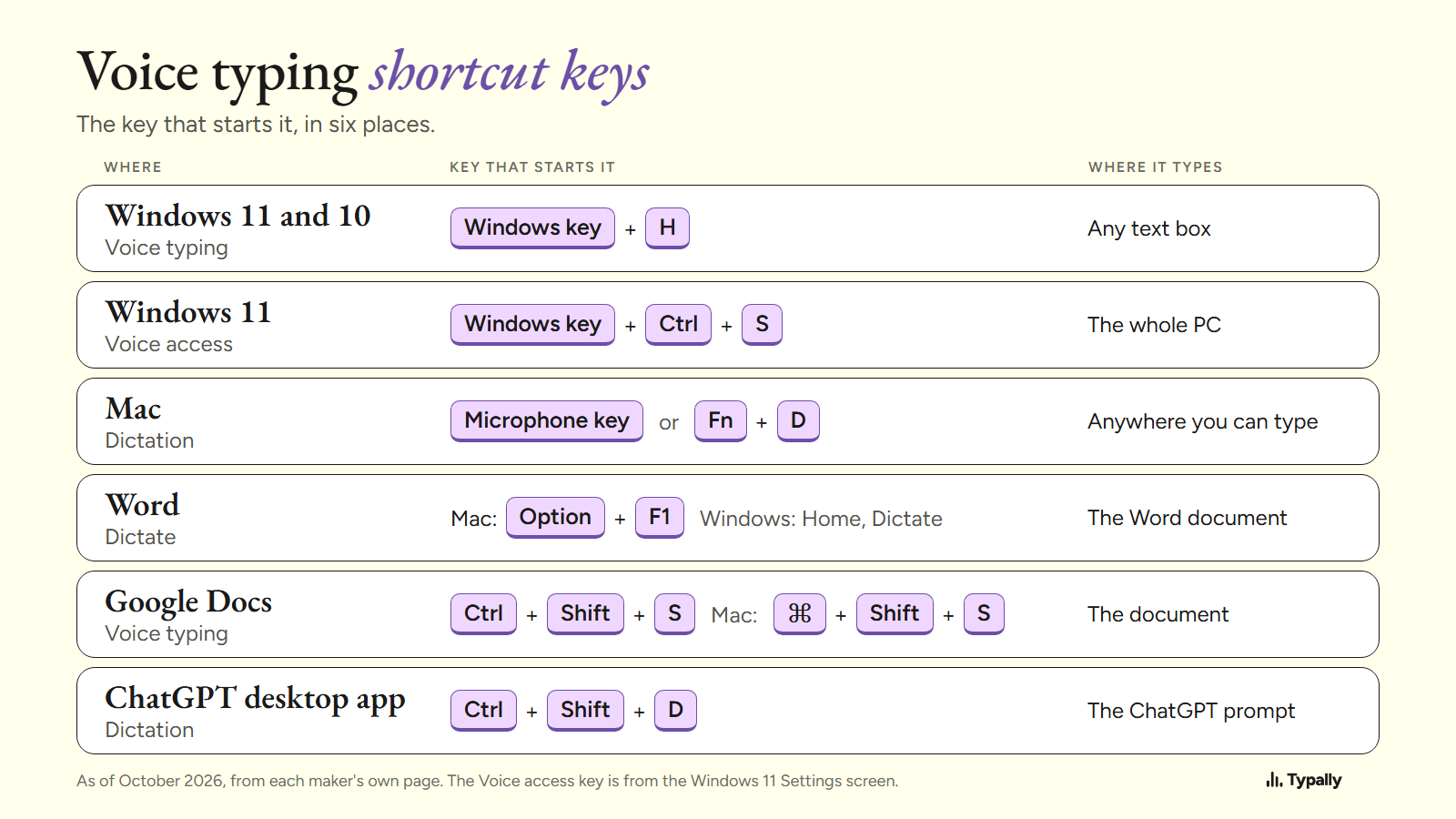
I build Typally, a voice typing app, and it comes up near the end. Every key below is from its maker's own page, opened on October 7, 2026, and linked. Where a page names no key, I say so.
Which key starts and stops voice typing in each place?
These are each maker's default keys, as of October 2026.
| Where | Start | Stop | Types into |
|---|---|---|---|
| Windows 11 and 10, voice typing | Windows key + H | Say "Stop listening", or press the microphone button | Any text box |
| Windows 11, Voice access | Windows key + Ctrl + S | The same keys | The whole PC |
| Mac, Dictation | Microphone key, or Fn-D | Escape, or the same key | Anywhere you can type |
| Word, Dictate | Mac: Option + F1. Windows: none named. | Say "stop dictation" | The Word document |
| Google Docs, voice typing | Ctrl + Shift + S. Mac: ⌘ + Shift + S. | Say "Stop listening", or click the microphone | The document |
| ChatGPT desktop app, dictation | Ctrl + Shift + D. Mac: Control + Shift + D. | None listed | The ChatGPT prompt |
What is the voice typing shortcut key in Windows 11 and Windows 10?
It is Windows key + H on both. Microsoft's voice typing page gives 2 ways to turn it on. Press Windows key + H "on a hardware keyboard", or press the Microphone button on the touch keyboard.
A laptop keyboard is a hardware keyboard, so the shortcut on a laptop is the same. Put your cursor in a text box first, then wait for the "Listening..." alert before you speak.
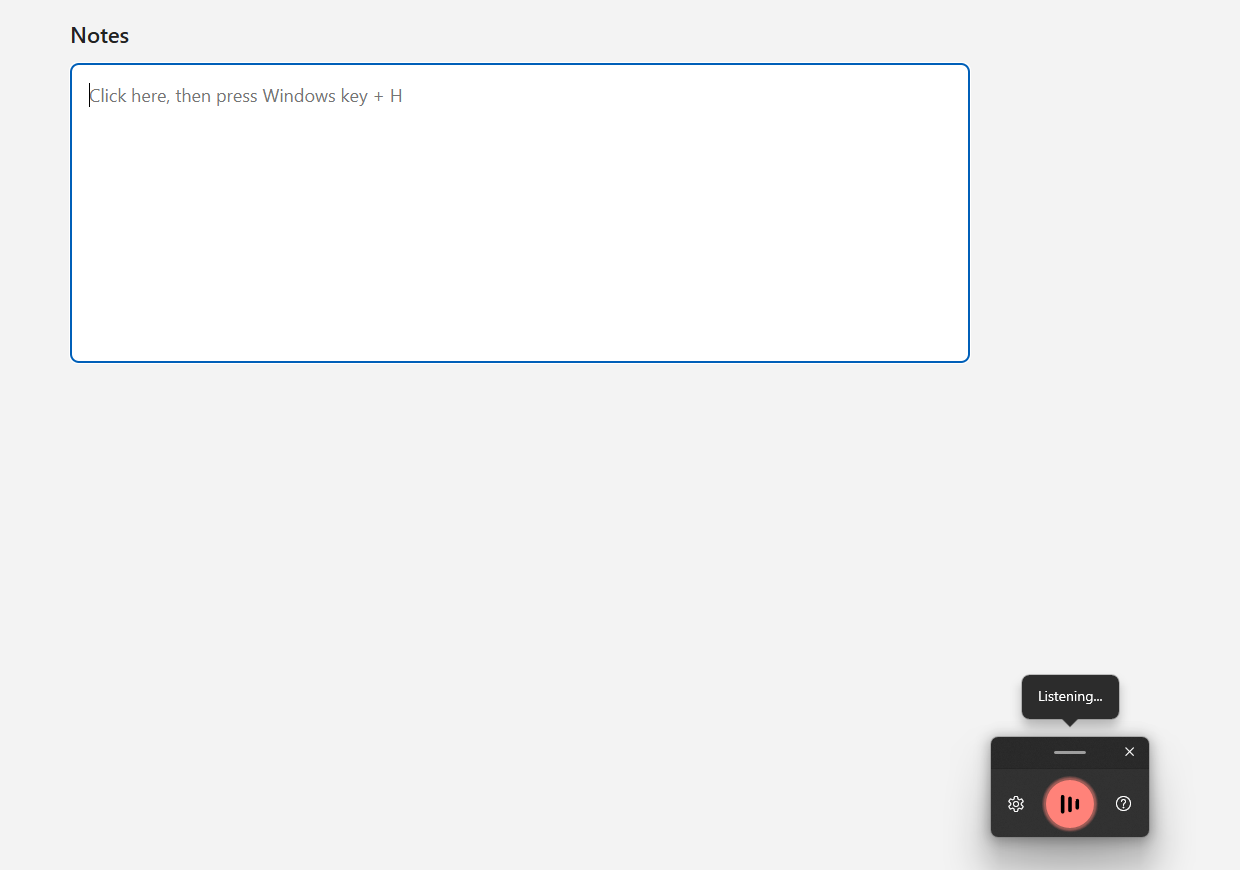
Neither of Microsoft's 2 ways to stop is a key. Say "Stop listening", or press the microphone button on the voice typing menu. On Windows 10, the same keys open "the dictation toolbar".
If the keys do nothing, see Windows voice typing not working. Every step is in speech to text on Windows.
What is the shortcut for Voice access on Windows 11?
It is Windows key + Ctrl + S, and Windows prints it in Settings. Open Settings, then Accessibility, then Speech. The line under Voice access reads: "Press the Windows logo key + Ctrl + S to turn voice access on or off".
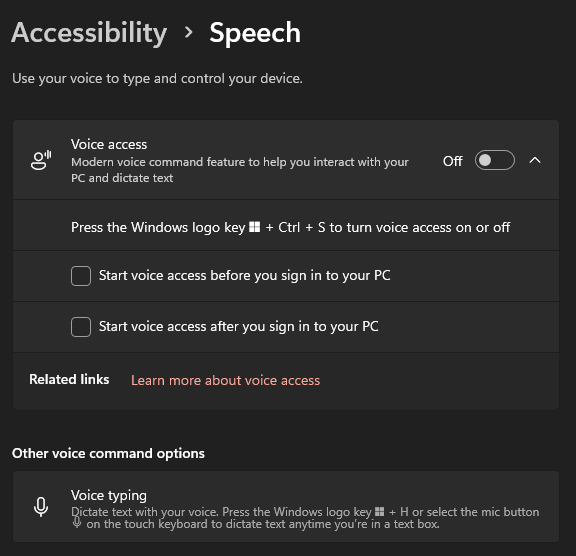
Microsoft's support pages say it differently. The Voice access FAQ names no key: it "can be started from Settings > Accessibility > Speech". The accessibility shortcut list still labels Windows key + Ctrl + S "Turn on Windows Speech Recognition". That older tool, Microsoft says, "will be replaced by voice access starting in September 2024".
Once it runs, Microsoft's get started page adds Alt + Shift + B, which wakes it or puts it to sleep. Hands-free typing covers what Voice access does.
What is the voice typing shortcut on a Mac, and how do you change it?
It is the Microphone key, or Fn-D. Apple calls the feature Dictation, and you turn it on first; how to dictate on a Mac has those steps. The keys below are from Apple's pages; I have no Mac screen to show.
- Microphone key. Apple's Dictation page says to press it "if available in the row of function keys". The MacBook Air guide labels it "Dictation/Siri (F5)". Press and release it, because holding it starts Siri.
- Fn-D. Apple's Mac keyboard shortcuts list has the line "Fn-D: Start or stop dictation."
- Stopping. Press Escape, the Microphone key or the Dictation shortcut. Dictation also stops after 30 seconds with no speech.
To change the shortcut, open System Settings, click Keyboard, and go to Dictation. Click the Shortcut pop-up menu and choose one. For your own keys, choose Customize, "then press the keys you want to use".
Older guides say to press Fn twice. On Apple's page today, "Press Fn (Function) Key Twice" is one choice in that menu, and the page names no default. So read the menu on your own Mac. If the key does nothing, see Mac Dictation not working.
What is the voice typing shortcut key in Word?
On a Mac it is Option + F1. The Mac tab of Microsoft's Dictate page for Word says: "You can also start dictation with the keyboard shortcut: ⌥ (Option) + F1."
The Windows tab names no key to start. Its steps say to go to Home, then Dictate. Some guides give Alt + ` (the backquote key) as the Windows shortcut. Microsoft's page names it once, for a narrower job. "To resume dictation, please use the keyboard shortcut ALT + ` or press the Mic icon in the floating dictation menu."
Dictate needs a Microsoft 365 subscription. Windows key + H is a separate tool that comes with Windows. See voice typing in Microsoft Word.
What is the voice typing shortcut in Google Docs?
It is Ctrl + Shift + S on a PC and ⌘ + Shift + S on a Mac. Both are in Google's keyboard shortcuts for Docs, in the row "Start voice typing (available in Chrome browsers)".
Google's voice typing page names no key. It says to click Tools, then Voice typing, then the microphone, and it lists Chrome, Edge and Safari. So if the keys do nothing in Edge or Safari, use the menu.
The steps are in voice typing in Google Docs. For a greyed-out menu, see Google Docs voice typing not working.
What is the dictation shortcut in the ChatGPT desktop app?
It is Ctrl + Shift + D on Windows and Control + Shift + D on a Mac. OpenAI's shortcut list for the desktop app has the row "Start dictation (When dictation is available)". It has no row for stopping.
OpenAI's prompting guide says to press it "while the composer is visible, then start talking". To change the key, open Settings, then Keyboard Shortcuts. This shortcut types only into ChatGPT; Talk to ChatGPT covers its voice mode too.
Why do you press some keys once and hold others?
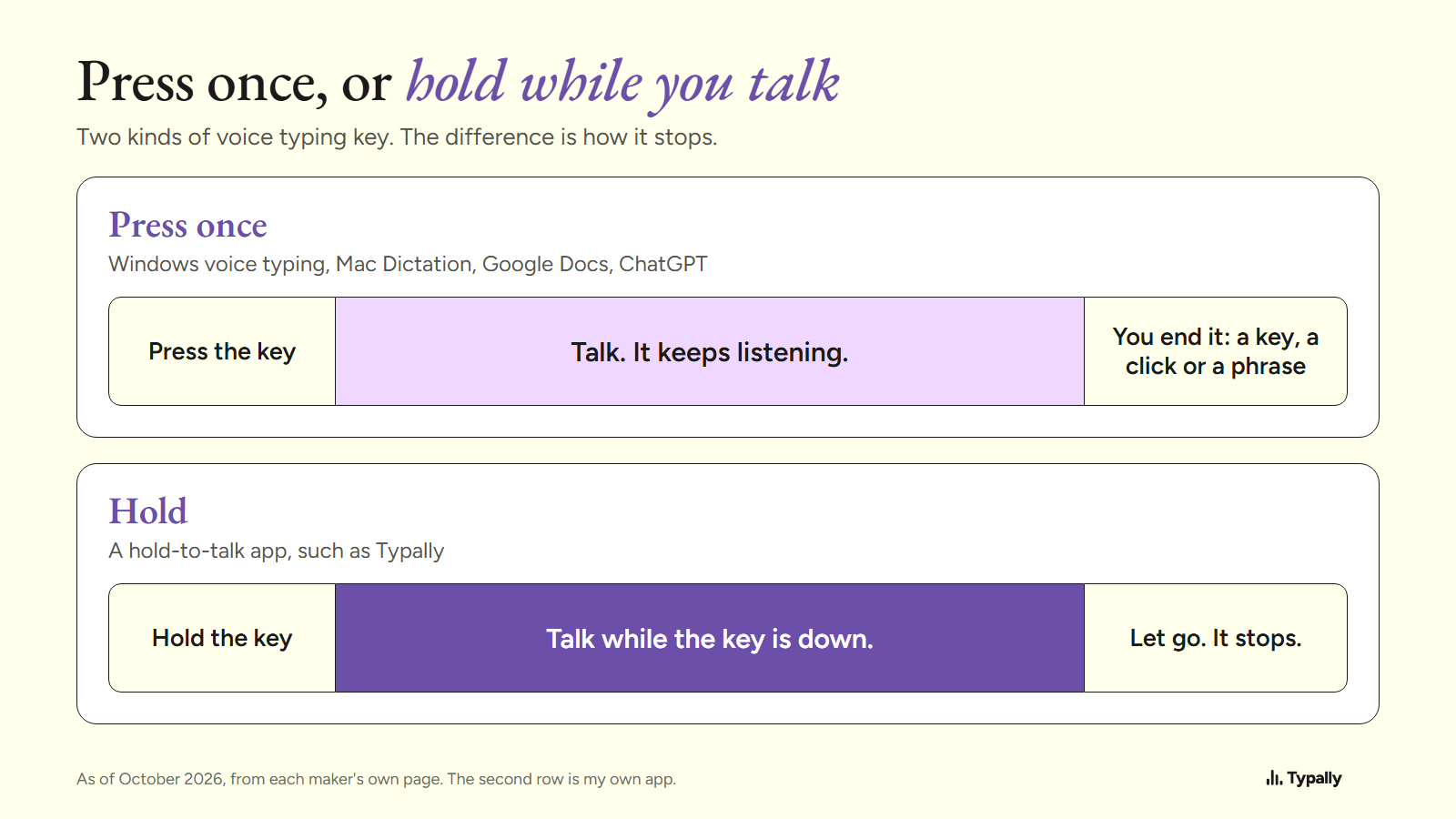
Because there are 2 designs. Every key above is pressed once: the tool starts listening, and ending it is a second step. A hold-to-talk app works the other way. You hold the key while you talk, and letting go is the stop.
When is a built-in shortcut enough?
Often. Windows key + H and the Mac's Microphone key come with the computer and follow your cursor from app to app. The Docs, Word and ChatGPT keys work only in their own app.
For the words to say once the tool listens, see dictation commands. How to voice type has the full steps.
Where does Typally fit?
Typally, voice typing for Mac and Windows, is the hold-to-talk app I build. Hold your shortcut key, talk, let go, and the text appears where your cursor is. You choose that key in the app's settings. It types into Gmail, Slack, ChatGPT or any other app.
The cleanup is on by default: it removes the ums and fixes the punctuation and capitals. It listens only while you hold the key, and the audio is discarded after transcription. It needs an internet connection, and it is one more app to install. If Windows key + H already does your job, keep it.
Download Typally free at typally.com for Windows or Mac. The free plan gives you 100 minutes a month and doesn't ask for a card.
What else do people ask about voice typing shortcuts?
Is the voice typing shortcut different on a laptop?
No. A Windows laptop uses Windows key + H too. On a MacBook Air, Apple's guide puts the Microphone key at F5.
Can you change the Windows key + H shortcut?
Microsoft's voice typing page lists no setting for it. On a Mac, you can change the Dictation shortcut in Keyboard settings.
Is Typally free?
There's a free plan with 100 minutes of dictation a month, forever, and it doesn't ask for a card. Pro is $11.99 a month with a 14-day free trial, and the trial needs a card.