To voice type on a computer, click where the text should go, switch on the dictation tool, and talk. On Windows 11, press Windows key + H. On a Mac, turn on Dictation in System Settings.
In short:
- Windows 11 and macOS have voice typing built in. Google Docs has its own under Tools, and Word's Dictate button needs a Microsoft 365 subscription.
- Say a whole sentence at your normal pace. Where the tool doesn't add punctuation, say it: "comma", "period", "question mark".
- Expect your "um" in the text. Of the four support pages I read, only Microsoft's Windows page mentions filler words, and only for Copilot+ PCs.
I build Typally, a voice typing app, and it comes up near the end. The steps below come from each maker's own support page, read on October 5, 2026. Some people call it dictation or talk to type.
How do you enable voice typing where you write?
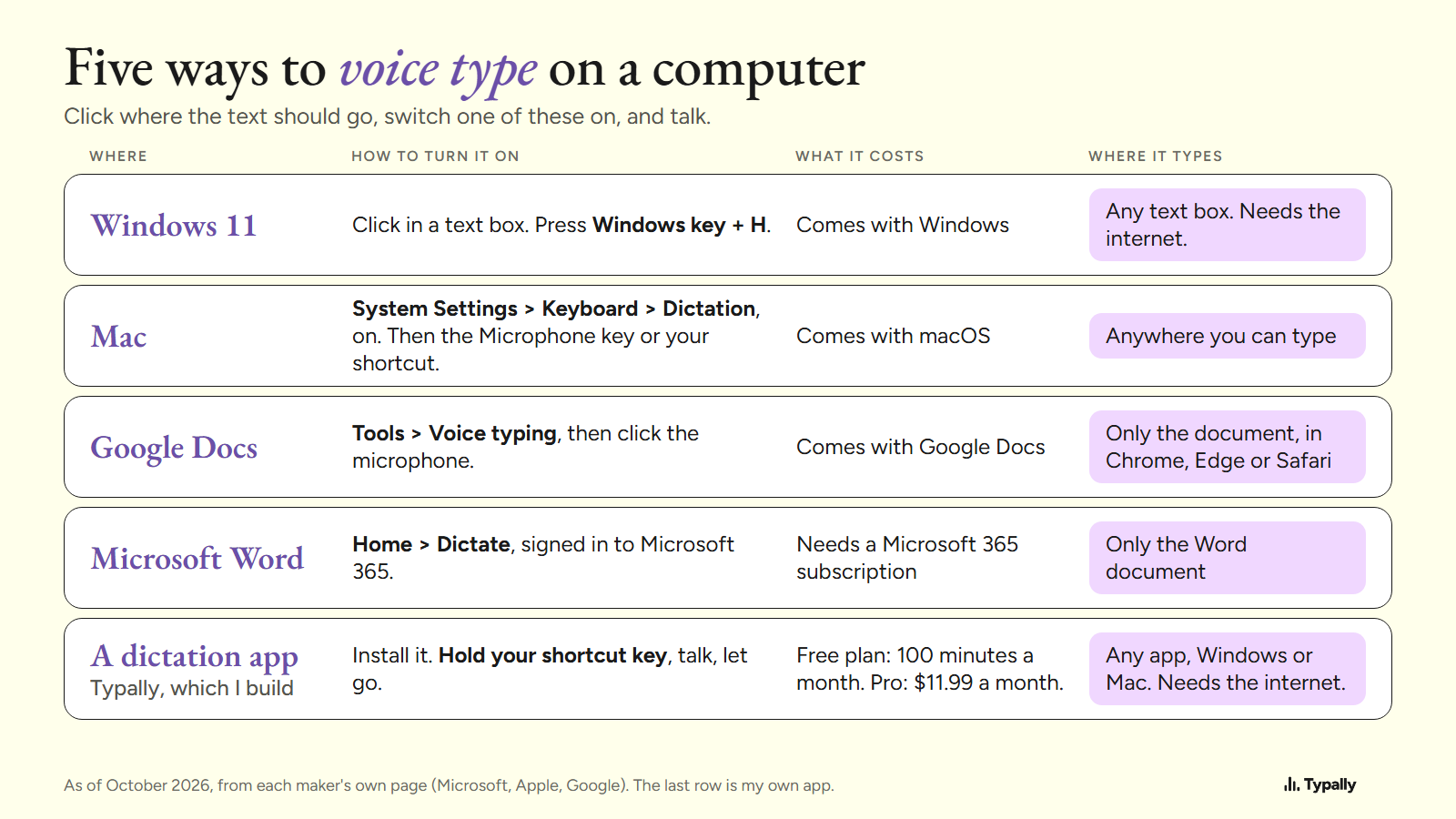
It takes one shortcut, one setting or one menu. Find your row; all 5 put the text at your cursor.
| Where | How to turn it on | What it costs | Where it types |
|---|---|---|---|
| Windows 11 | Click in a text box. Press Windows key + H. | Comes with Windows | Any text box. Needs the internet. |
| Mac | System Settings, Keyboard, Dictation: turn it on. Then press the Microphone key or your shortcut. | Comes with macOS | Anywhere you can type |
| Google Docs | Click Tools, Voice typing, then the microphone. | Comes with Google Docs | Only the document, in Chrome, Edge or Safari |
| Microsoft Word | Home, then Dictate, signed in to Microsoft 365. | Needs a Microsoft 365 subscription | Only the Word document |
| A dictation app (Typally, which I build) | Install it. Hold your shortcut key, talk, let go. | Free plan: 100 minutes a month. Pro: $11.99 a month. | Any app on Windows or Mac. Needs the internet. |
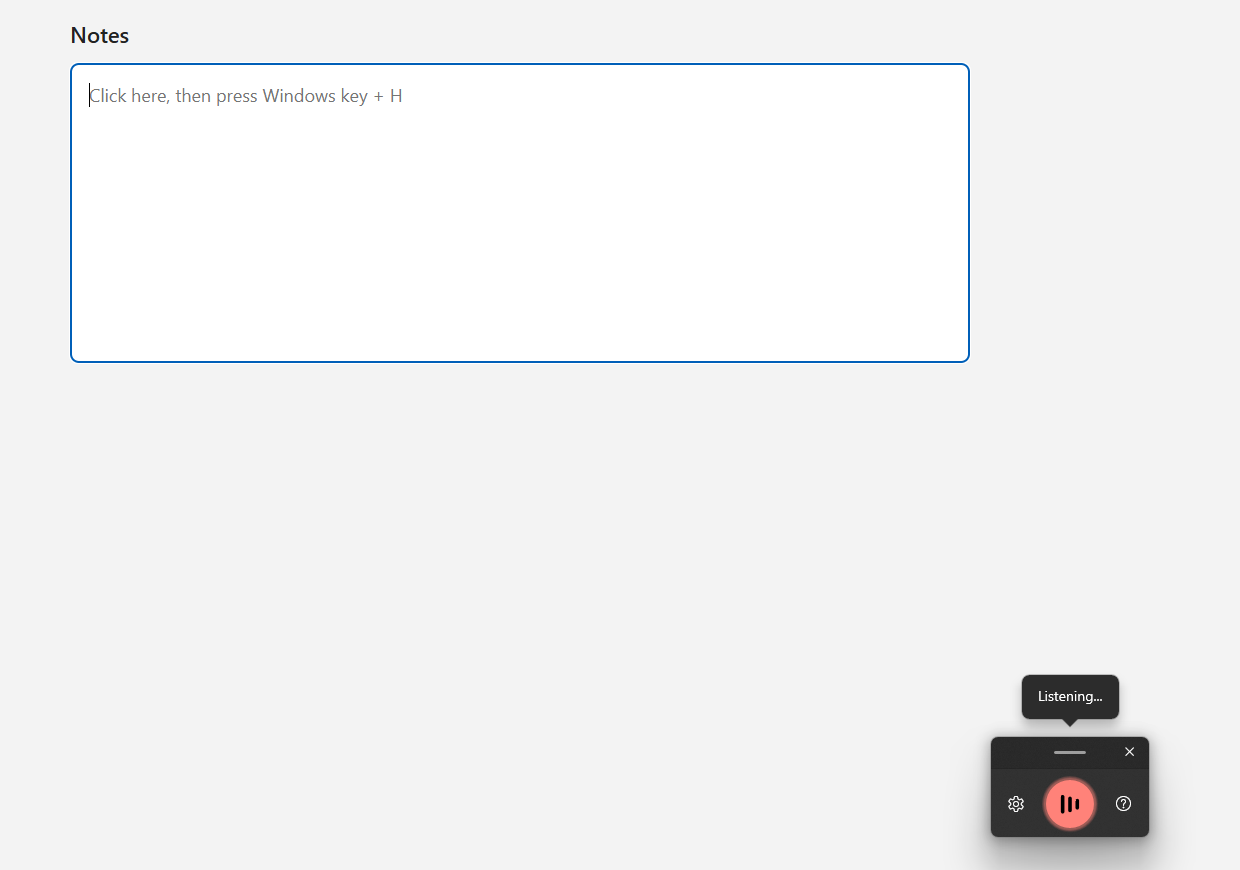
Windows 11. Microsoft's voice typing page says to wait for the "Listening..." alert before you speak. Say "Stop listening" to end. Our Windows speech to text guide has every step.
Mac. Apple's Dictation page gives 3 ways to start: the Microphone key if your keyboard has one, the Dictation shortcut, or Edit, then Start Dictation. It says System Settings, not the System Preferences some guides still mention. These are Apple's steps; I have no Mac screen to show. More in how to dictate on a Mac.
Google Docs. Google's voice typing page says it works with the latest versions of Chrome, Edge and Safari. More in voice typing in Google Docs.
Microsoft Word. Microsoft's Dictate page says: "The dictation feature is only available to Microsoft 365 subscribers." It asks for a microphone and a reliable internet connection. More in voice typing in Microsoft Word.
A dictation app. This is a separate program that types into whichever window has your cursor. Best Voice Typing Software compares 10 of them.
How do you use dictation so the text comes out right?
Say one whole sentence at your normal pace, then pause. Google's advice is one line: "Speak clearly and at a normal volume and pace."
A lone word gives the tool little to go on. Apple's example: you may get "flour" when you meant "flower". The words around it are what settle that. That is my reasoning; I haven't tested it.
My own dictations run long. On September 30, 2026, my Typally Insights screen showed 476,777 words across 5,655 dictations, about 84 words each. My numbers, not a typical result.
Do you have to say the punctuation out loud?
Sometimes. It depends on the tool, its settings and your language.
- Mac. Apple says: "In supported languages, Dictation automatically inserts commas, periods, and question marks for you as you dictate." For other marks, say the name, such as "exclamation mark".
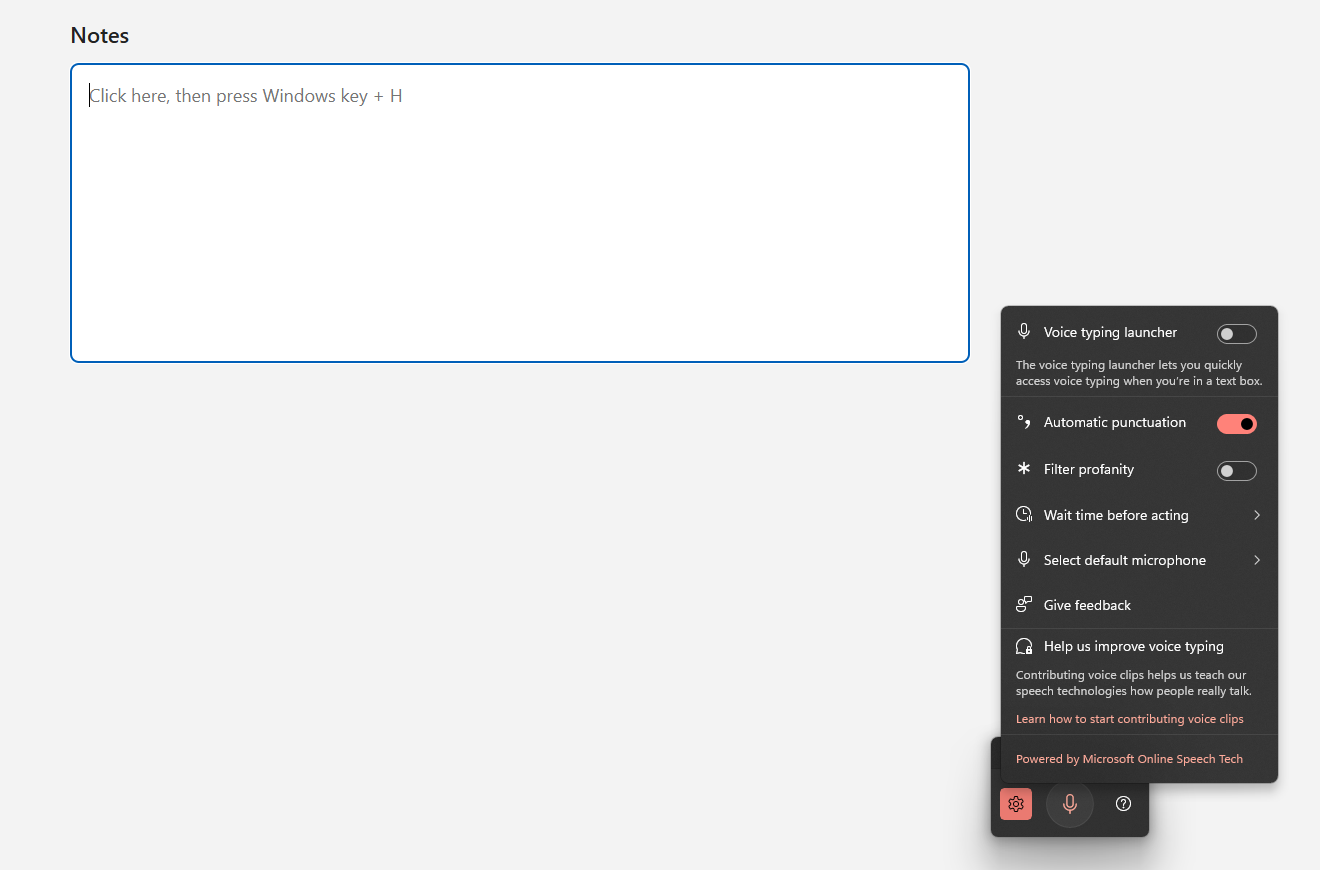
- Windows 11. Microsoft's how-to page says: "For punctuation support, select the Settings icon and toggle on Auto punctuation." Or say "comma", "period" or "question mark".
- Google Docs. Google lists 6 commands: "Period", "Comma", "Exclamation point", "Question mark", "New line" and "New paragraph". It warns that punctuation "might not be available in every language".
- Word. Microsoft's list has "period", "comma", "question mark" and "new line".
What do you do about names and jargon?
Expect to fix them by hand. Each built-in tool lets you repair a wrong word without starting over.
- Google Docs. Google says "you can move your cursor to the mistake and fix it without turning off the microphone".
- Mac. Ambiguous text is underlined in blue. Click the word and pick another.
- Windows 11 and Word. Say "Delete that" to remove the last thing you said.
For a name you use every day, typing it can be quicker than a third try. Some dictation apps keep a word list for names and product terms. Mine does.
Why does voice typing type your "um"?
Because a dictation tool writes down what you said, and you said "um". Of the four support pages, only Microsoft's Windows page mentions filler words.
It describes fluid dictation, "a new feature in Voice typing on Copilot+ PCs". It "automatically corrects grammar, punctuation, and filler words as you speak". Microsoft says it is on by default there, in all English locales.
Elsewhere, plan to take the fillers out yourself. I'm going by the four pages; I haven't run the tools side by side.
Some dictation apps add a cleanup step after the transcript. Here is one run of Typally’s. The input is an example I wrote with fillers in it; both texts are unaltered.
With the fillers (51 words)
um so hi Dana uh thanks for sending the draft over like I read it this morning and I think the intro is uh a bit long you know so can we cut the first two paragraphs and um move the pricing table up and I'll send my notes by Thursday
After cleanup (39 words)
Hi Dana, thanks for sending the draft. I read it this morning and think the intro is a bit long. Can we cut the first two paragraphs and move the pricing table up? I'll send my notes by Thursday.
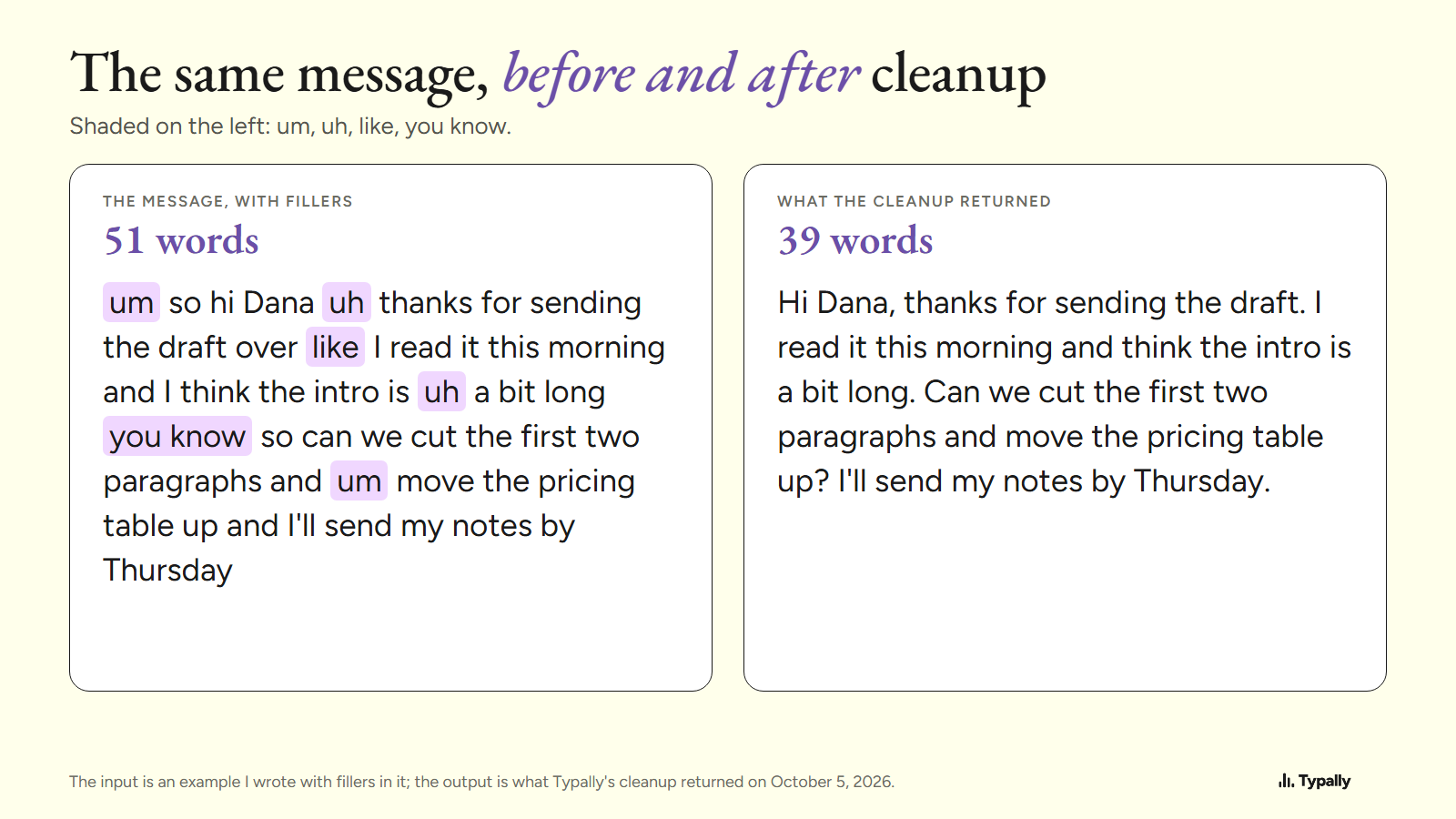
It changed a little more than the fillers: "sending the draft over" became "sending the draft". So with any tool, read the text once before you send it. Look for sound-alike words, names and small edits like that one.
When are the built-in tools enough?
Often. For short messages, start with Windows key + H or Mac Dictation. Both come with the system and type wherever your cursor is. Google Docs voice typing is the pick if your writing lives in Docs. Word's Dictate is the pick if you already pay for Microsoft 365.
Each stops somewhere. Docs and Word type only in their own documents, and Mac Dictation stops after 30 seconds without speech. Our free speech to text guide covers more options, and Typally vs Windows voice typing compares that pair.
Where does Typally fit?
Typally, voice typing for Mac and Windows, is the fifth row. Hold your shortcut key, talk, let go, and the text appears where your cursor is. That can be Gmail, Slack, ChatGPT or any other text box. A hands-free mode covers long thoughts. The cleanup is on by default: it removes the ums and fixes the punctuation and capitals.
It listens only while you hold the key. The audio is discarded after transcription, and your history stays on your computer. I use it to prompt Claude and ChatGPT. Talk to ChatGPT covers ChatGPT's own voice options.
Download Typally free at typally.com for Windows or Mac. The free plan gives you 100 minutes a month and doesn't ask for a card.
What else do people ask about voice typing?
What is the keyboard shortcut for voice typing?
On Windows 11, it's Windows key + H. On a Mac, some keyboards have a Microphone key, and you choose the Dictation shortcut in System Settings under Keyboard.
Why is voice typing not working?
Check the 3 things Microsoft lists: the internet, a working microphone, and a cursor in a text box. If the tool can't hear you, Google suggests a quiet room or an external microphone.
Is voice typing free?
Windows 11, macOS and Google Docs include theirs, and Word's Dictate needs a Microsoft 365 subscription. Typally has a free plan: 100 minutes of dictation a month, forever, no card needed. Pro is $11.99 a month with a 14-day free trial, and the trial needs a card.