Hands-free typing means you say the words and the computer types them. Two built-in tools go further: Voice access in Windows 11 and Voice Control in macOS also start, correct and click by voice.
In short:
- Voice access (Windows 11) and Voice Control (macOS) are fully hands-free once they are set up. You wake them, dictate, fix a word and click a button by voice.
- Windows voice typing and Mac Dictation type what you say, but a hand goes first. It takes one click to place the cursor and one key press to start.
- The first setup can need a hand, or someone's help. Each voice control tool is switched on in settings and downloads its files once.
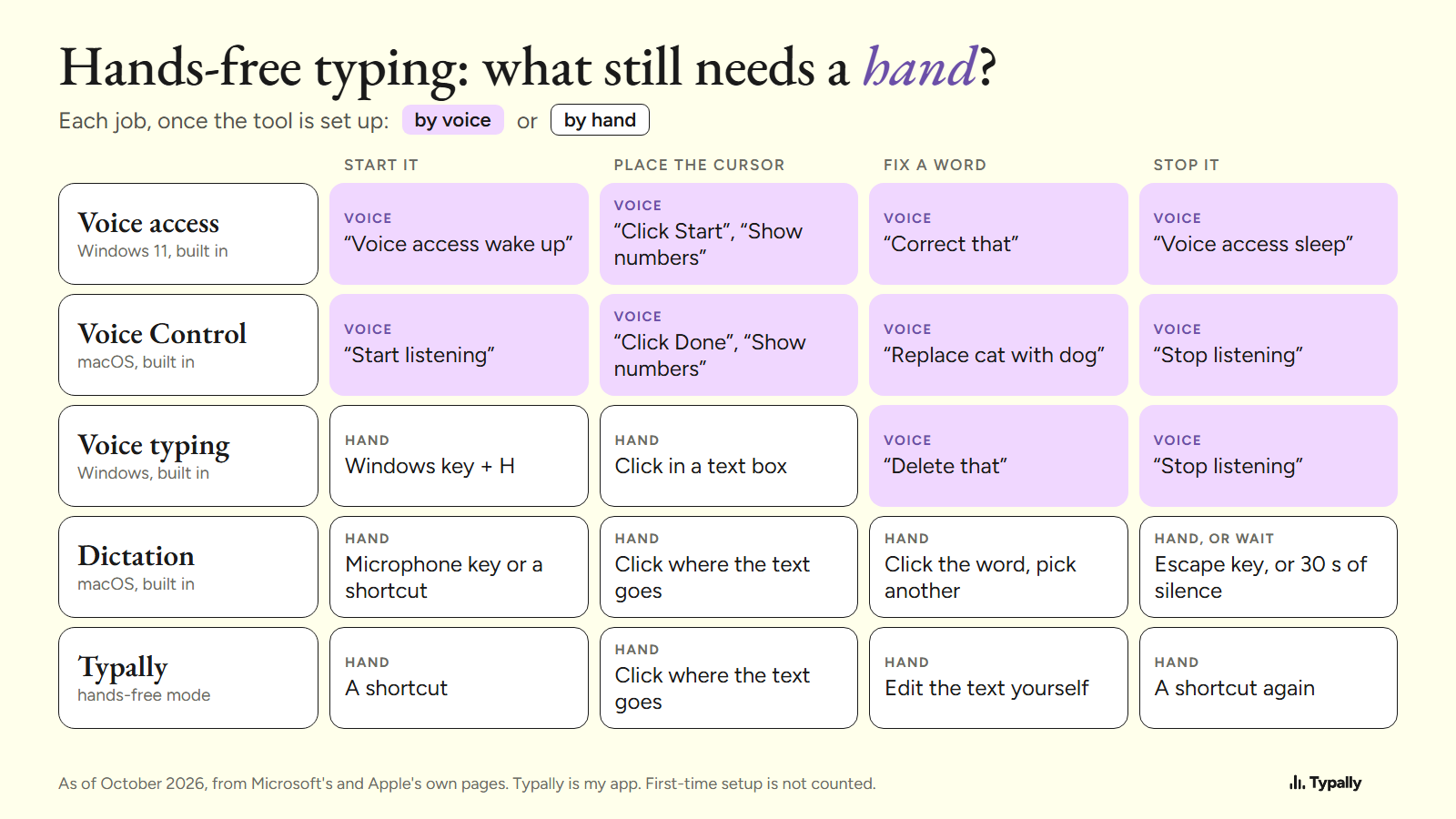
I build Typally, and it comes up near the end. I use it for prompting AI: 476,777 words dictated by September 30, 2026, by the app's own count. My number, not a typical one. I ran no speaking test on the tools below. Each fact about them is from Microsoft's or Apple's own page, read on October 7, 2026.
If an injury or a disability brought you here, read this as a list of what the tools do. It isn't medical advice. For a setup that fits you, an occupational therapist or an assistive technology service is the right source.
Which tools let you type without hands, start to finish?
Two come with your computer: Voice access in Windows 11 (version 22H2 or later) and Voice Control in macOS. Microsoft's Voice access page says it lets people "control their PC and author text using only their voice and without an internet connection". Apple's Voice Control page: "speak commands to navigate the desktop and apps, interact with what's on the screen, dictate and edit text, and more."
Both cover the four jobs of writing by voice.
- Start. On Windows, "Voice access wake up" starts the listening and "Voice access sleep" pauses it. On a Mac, the words are "Start listening" and "Stop listening".
- Dictate. Microsoft's dictation page says to "first move the focus to the text box", for example with "Click" and the box's name. Then talk. Apple: "Any words you say that aren't Voice Control commands are entered as text."
- Correct. On Windows, "Correct that" opens "a list of alternative text suggestions labeled with numbers", and "Click 1" picks the first. Apple's example is "Replace cat with dog".
- Click. Say "Click Start" on Windows or "Click Done" on a Mac. If a button has no clear name, "Show numbers" tags each item with a number. "Show grid" reaches any spot on the screen.
Check your language first. Microsoft's setup page lists 15 languages and dialects for Voice access, as of October 2026.
What still needs a hand in Voice access and Voice Control?
The first setup, and on Windows a microphone you switched fully off. After that, both run by voice.
Windows. Turn on the Voice access switch in Settings > Accessibility > Speech. The first run downloads language files, and Microsoft's setup page says: "You'll need an internet connection to complete this step." On the same screen, two checkboxes start Voice access before or after you sign in, with no key press.
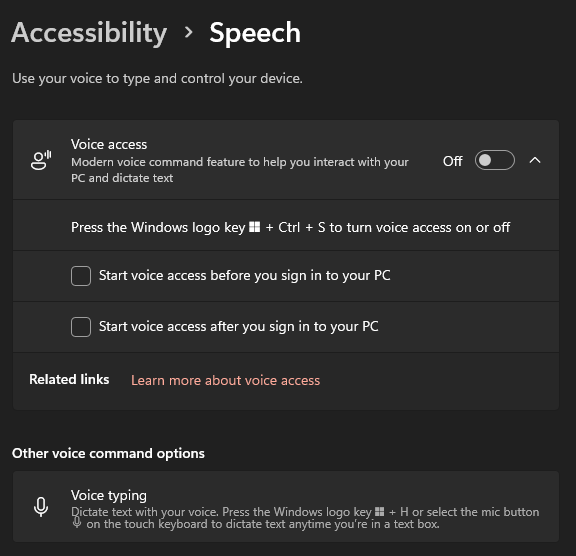
Voice access has three microphone states: listening, asleep and off. Asleep, it still answers to "Voice access wake up". Off, Microsoft says, "you have to click the Microphone button", or press Alt+Shift+C. So say "Voice access sleep", not "Turn off microphone", when you step away. From Windows 11 version 23H2, it also works on the sign-in screen.
Mac. I have no Mac screen to show, so these steps are Apple's. Turn Voice Control on in System Settings > Accessibility > Voice Control. Apple says that the first time, "your Mac must be connected to the internet so it can complete a one-time file download from Apple".
You can also ask Siri: "Turn on Voice Control." Siri answers to "Hey Siri" only if that option is on. And Apple's Siri page notes: "You must be connected to the internet to use Siri."
How hands-free are Windows voice typing and Mac Dictation?
Partly. Both type what you say, but a hand places the cursor and starts them.
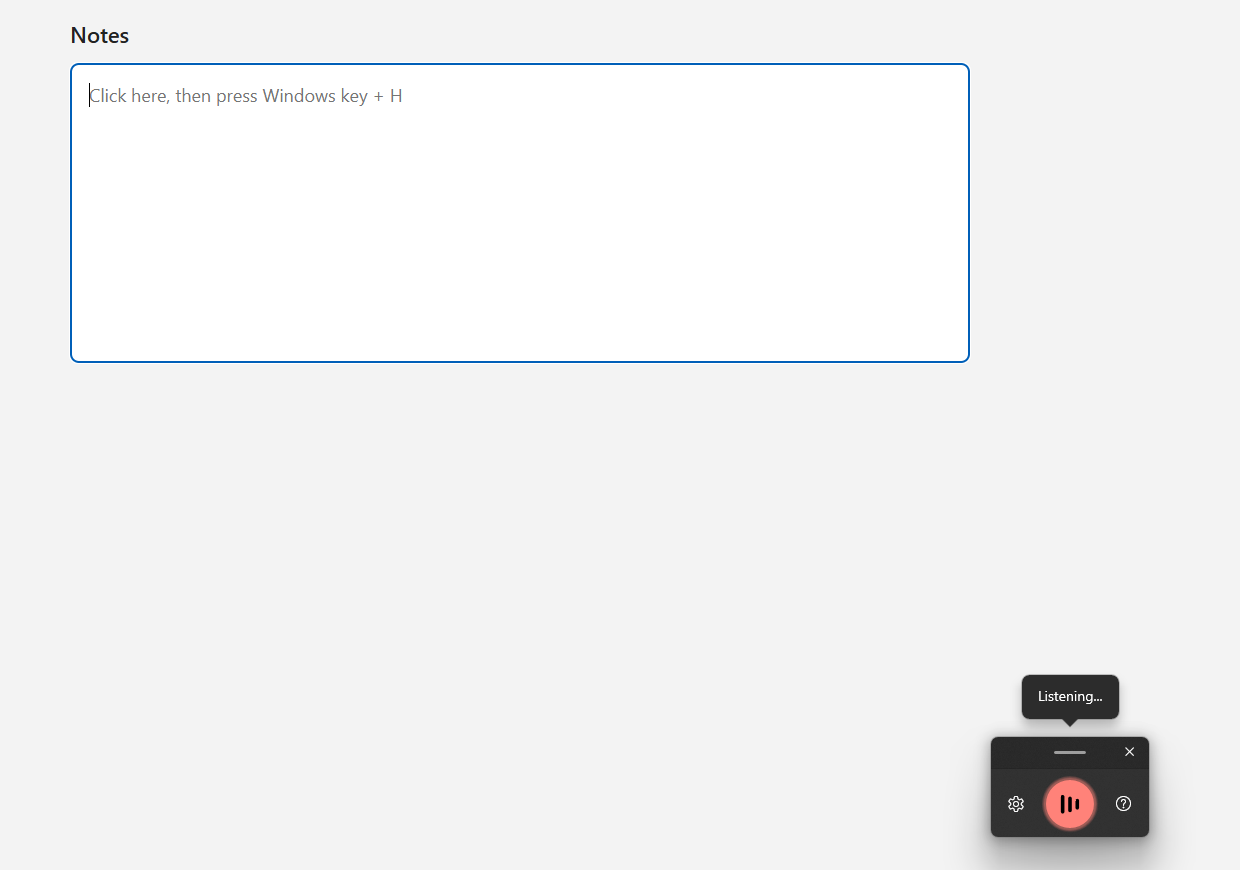
Windows voice typing. Microsoft says you need "to be connected to the internet, have a working microphone, and have your cursor in a text box". Then you press Windows key + H. From there your voice takes over: "Stop listening" stops it, and "Delete that" removes the last word or phrase.
Mac Dictation. Apple's steps: "place the insertion point where you want to enter text", then press the Microphone key or the Dictation shortcut. It stops with the Escape key, or by itself "when no speech is detected for 30 seconds". For a word it wasn't sure of, Apple says to "click the underlined word and select an alternative".
You can't stack the two Mac tools. Apple: "When Voice Control is on, you use Voice Control to dictate text; standard macOS Dictation isn't available."
The keys are in voice typing shortcuts, and the spoken words in dictation commands. If one won't start, see the fixes for Windows voice typing and Mac Dictation.
Where does Typally fit?
Between the two groups: it types in any app, and it leaves the clicking to you. Typally, voice typing for Mac and Windows, has two ways to talk.
- Hold to talk. Hold your shortcut key, talk, let go. That is one hand, for as long as the sentence.
- Hands-free mode. You switch it on with a shortcut, talk with your hands off the keyboard, and switch it off with a shortcut.
Either way, the text appears where your cursor is once you stop. That can be ChatGPT, Claude, Gmail, Slack or any other text box. The cleanup is on by default: it removes the ums and fixes the punctuation and capitals.
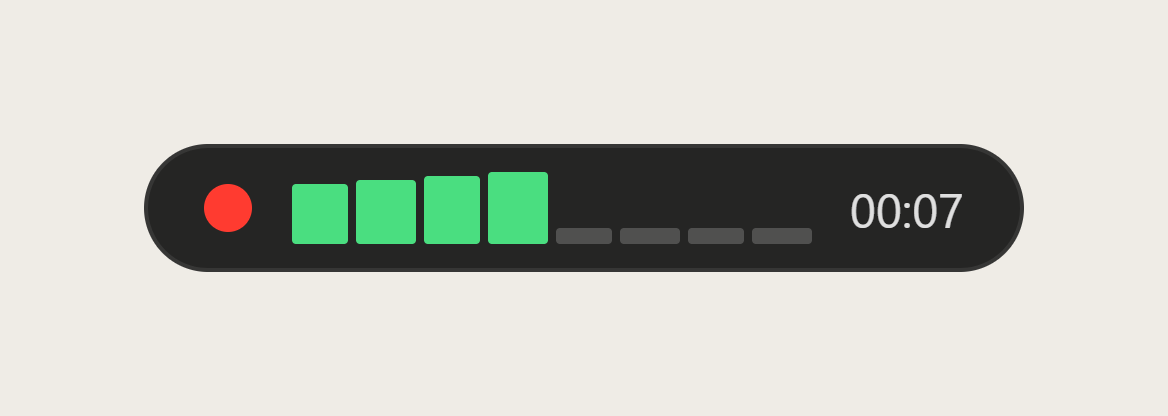
Hands-free mode suits someone who can press a shortcut and click, and wants to talk for minutes without holding a key. Typally does not control the computer. It won't click a button, open an app or correct a word by voice command. For full control without hands, Voice access or Voice Control is the better pick, and both come with your computer.
Typally needs an internet connection. It listens only while you hold the key, or between the two shortcut presses in hands-free mode. The audio is discarded after transcription, and your history stays on your computer.
Download Typally free at typally.com for Windows or Mac. The free plan gives you 100 minutes a month and doesn't ask for a card.
What else do people ask about hands-free typing?
Is there free hands-free typing software?
Yes. Voice access comes with Windows 11 and Voice Control with macOS, and both type and control the computer by voice. Windows voice typing and Mac Dictation are built in too. Free speech to text software lists more.
Can you type without a keyboard and without your voice?
Yes. Windows has an On-Screen Keyboard you work with "your mouse or another pointing device". It also has eye control, which needs a supported eye tracking device. Apple's mobility page lists an Accessibility Keyboard, Switch Control and a head pointer that uses the Mac's camera.
Does hands-free typing need an internet connection?
Voice access and Voice Control need it once, for their download. Windows voice typing needs it every time, and so does Typally.
Who can help with a hands-free setup?
For a setup built around you, ask an occupational therapist or an assistive technology service. For the tools themselves, Microsoft runs a Disability Answer Desk for "technical assistance". Apple has an Accessibility Support site.