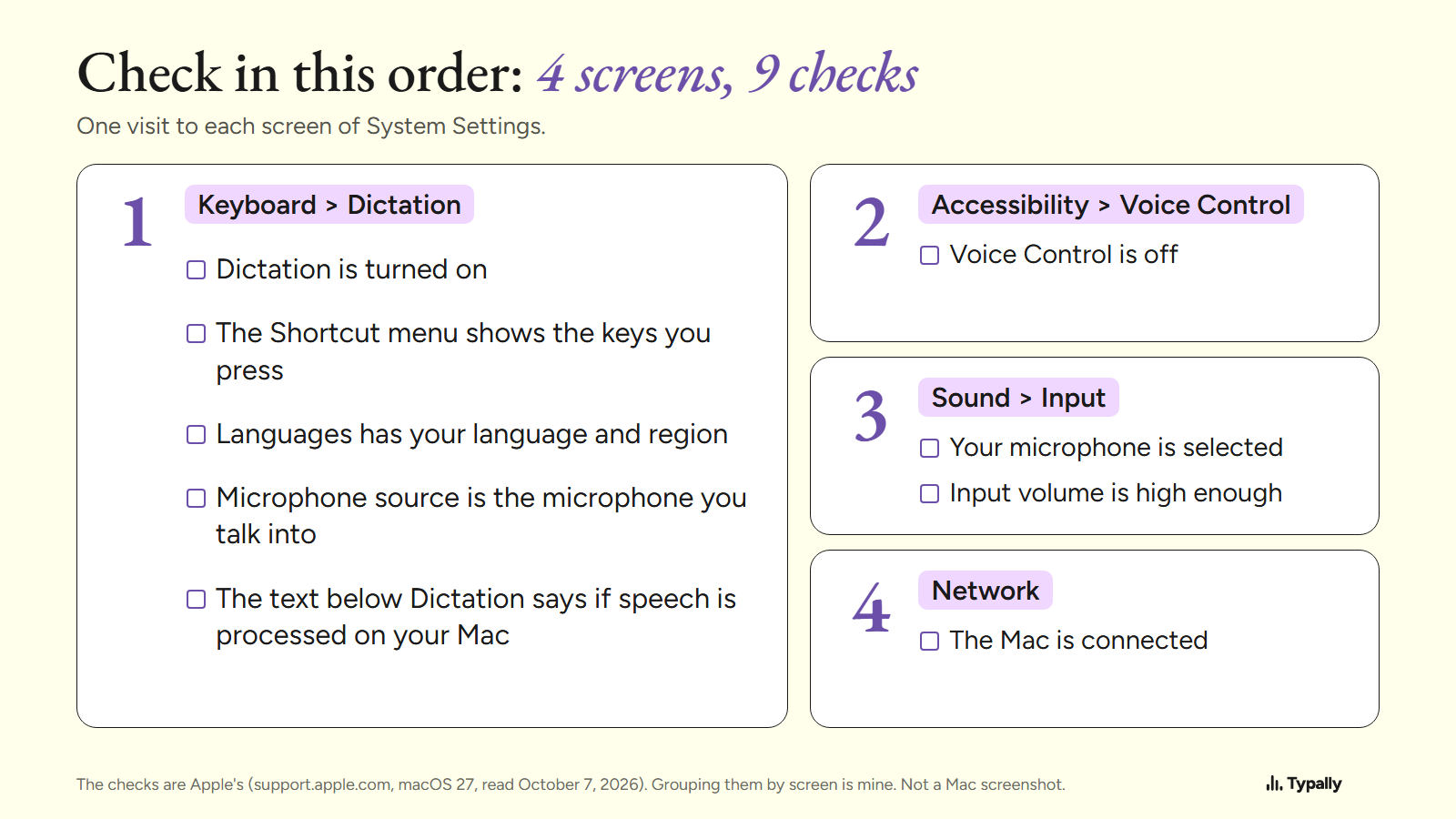
When Mac Dictation is not working, start from the symptom, because each one points to a different setting. Apple's fixes sit in 4 parts of System Settings: Keyboard, Accessibility, Sound and Network.
In short:
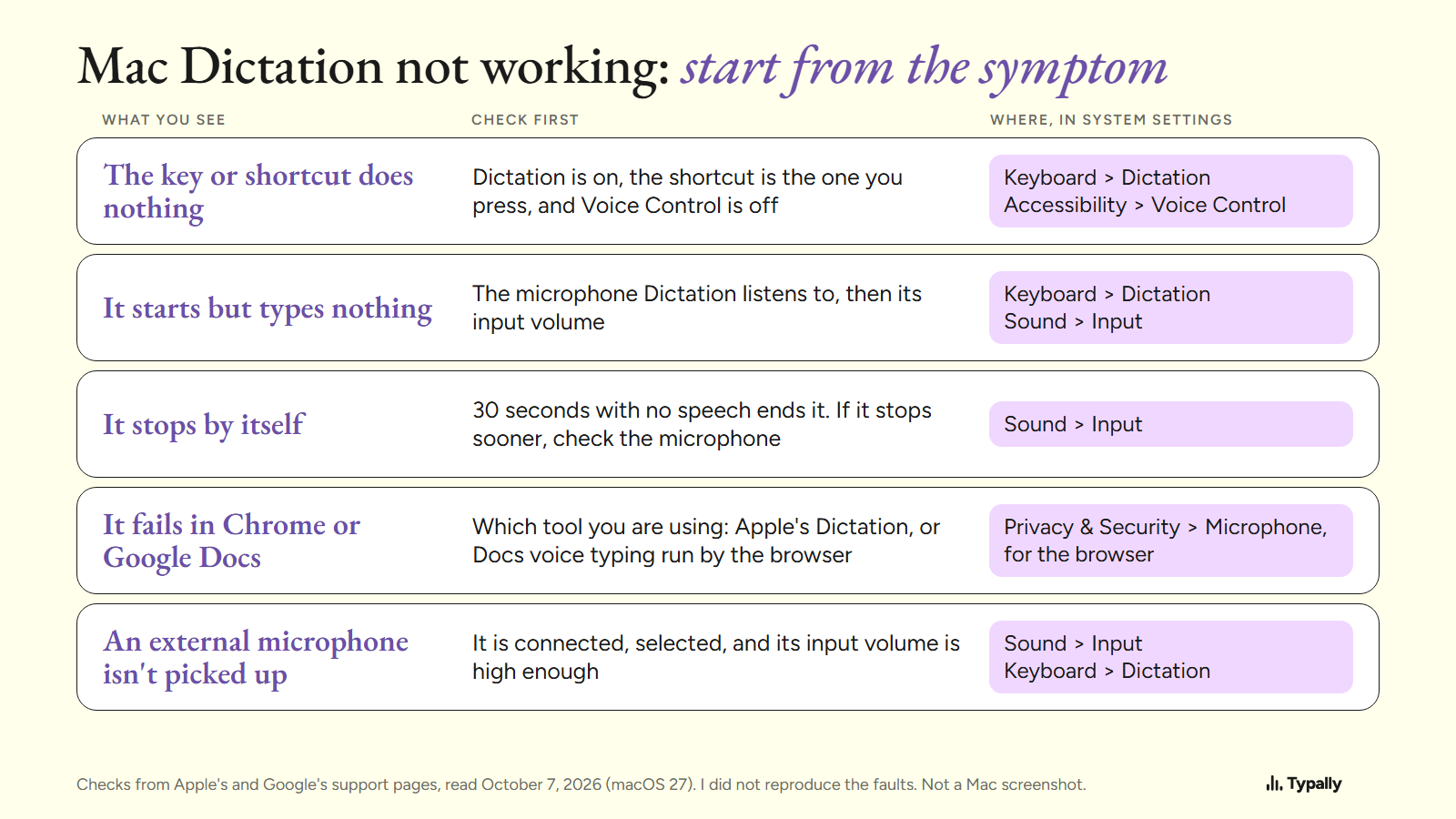
- If the Microphone key or shortcut does nothing, check 3 things. Dictation is on, the shortcut is the one you press, and Voice Control is off.
- Mac Dictation stops by itself after 30 seconds with no speech. Apple names no other time limit, so if it stops sooner, check the microphone first.
- Google Docs has its own voice typing, run by the browser. It is a different tool from Apple's Dictation and has different fixes.
I build Typally, and it comes up near the end. By September 30, 2026, I had dictated 476,777 words with it, by its own count. I show no Mac screen and reproduced none of these faults. Each fix is Apple's, from its support pages for macOS 27, read on October 7, 2026, unless I call it a general check. On an older macOS, use the version menu on Apple's page.
For setup and spoken commands, see How to Dictate on a Mac.
Why does the Microphone key or shortcut do nothing on a Mac?
Apple's pages give 5 things to check: the switch, the shortcut, how you press, the Fn key setting and Voice Control.
- Switch. Apple's list, If Dictation on Mac doesn't work as expected, starts here: "Be sure Dictation is turned on in Keyboard settings."
- Shortcut. Under Dictation in Keyboard settings, the Shortcut pop-up menu shows which keys are set. The Microphone key counts only "if available in the row of function keys", by Apple's Dictation page.
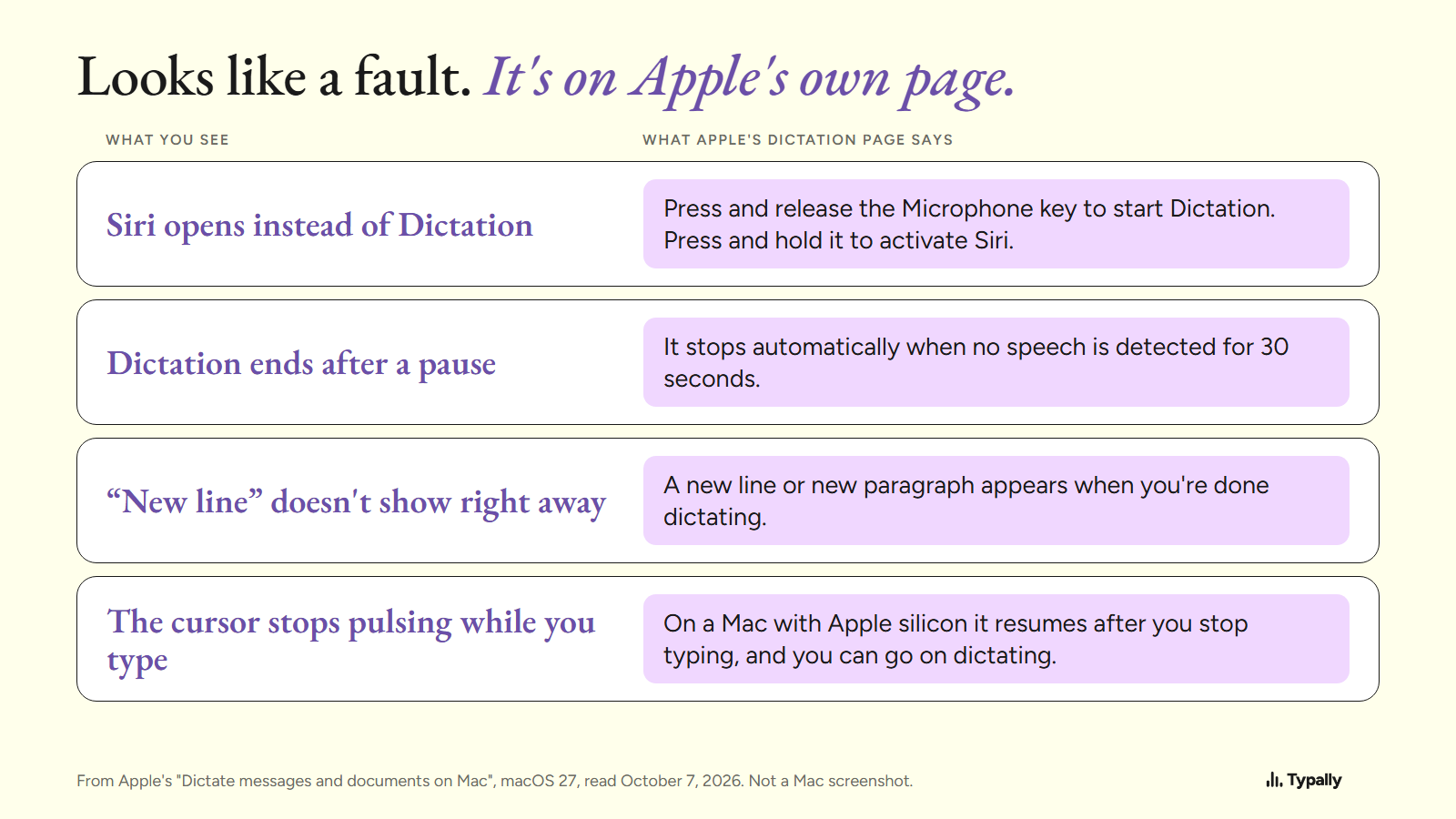
- Press, don't hold. The same page says: "Press and release the Microphone key to start Dictation; press and hold the key to activate Siri". So on a MacBook, a long press opens Siri, if Siri is on.
- Fn key. Apple's Keyboard settings page lists a "Press fn key to" option with 4 choices. One is Start Dictation, which works "when you press the key twice".
- Voice Control. Apple's wording: "When Voice Control is on, you use Voice Control to dictate text; standard macOS Dictation isn't available." Turn it off in System Settings, under Accessibility, then Voice Control.
Apple also lists a way to start with no key at all: choose Edit > Start Dictation. If the menu starts it and the key doesn't, look at the shortcut (my reasoning, not Apple's). Voice Typing Shortcut has the keys for each system.
Why does Dictation start but type nothing, or the wrong words?
Apple's list points to the microphone, its input volume, the language and the connection.
- Microphone. Under Dictation in Keyboard settings, "Microphone source" shows "which device your Mac is currently using to listen for Dictation".
- Volume. "If your Mac isn't responding to your voice, select the microphone in Sound settings and increase its input volume." The slider is in Sound, under Input.
- Cover and noise. Keep the microphone clear of "clothing or your body". In a loud or echoing room, Apple suggests a headset microphone.
- Language. "Choose the correct language and region."
- Connection. "You may need an internet connection." Check it under Network. The text below Dictation in Keyboard settings says whether speech is processed on your Mac. Apple's on-device note covers "composing messages and notes, but not dictating in a search box".
Grouped by screen, that makes 4 screens and 9 checks.
Why does Mac Dictation stop by itself?
Because of a 30-second rule. Apple says Dictation "stops automatically when no speech is detected for 30 seconds". It also says you can dictate "text of any length without a timeout".
So if it stops while you are still talking, my reading is that the Mac no longer hears speech. Go back to the microphone and volume checks.
Three keys also end it: Escape, the Microphone key, and a second press of the Dictation shortcut.
Apple's page describes 4 things that can look like a fault.
Why is Mac Dictation not working in Chrome or Google Docs?
First find out which tool you are using, because Google Docs has its own voice typing. Google's help page puts it under Tools, then Voice typing. It works in the latest Chrome, Edge and Safari. Google adds: "your web browser controls the speech-to-text service".
So its fixes are browser fixes. Chrome's microphone page says to allow the site, then check your system settings. On a Mac that is Privacy & Security, then Microphone. There, Apple says, you turn access "on or off for each app in the list". Google Docs Voice Typing Not Working covers that tool.
Apple's Dictation is the other tool. Apple says it enters text "anywhere you can type it", and these pages name no browser as an exception. Apple's first step: place the insertion point where the text should go.
Then a general check, not Apple's: press the same shortcut in Notes. If it works there, the fault is in that page or app.
Why is Mac Dictation not working with an external microphone?
Apple's list has 2 lines for it. On a Mac with no internal microphone, one must be "connected to your Mac and selected in Sound or Keyboard settings". With any external microphone, the input volume must be "sufficient".
- Is it listed? Sound > Input lists "All sound input devices available to your Mac". A general check: if yours is missing, the Mac doesn't see it, so try the cable and the port.
- Is it chosen for Dictation? With Automatic, "your Mac listens to the device you're most likely to use for Dictation". Picking it by name removes that guess (my reasoning).
- Is a display involved? With a headset plugged in, choosing an external display's microphone "may revert to the headset". Apple's fix: unplug the headset, then choose.
- Still nothing? Apple's page on recording audio on a Mac sends you to the maker "for software updates and information on compatibility".
Which popular fixes are not on Apple's pages?
Terminal commands, deleted preference files and restarted background processes. Several ranking guides list them. None is on the Apple pages I read, and I did not test them.
Restarting and updating are general checks, each with an Apple page: Apple menu > Restart, and Software Update under General.
Is Apple's Dictation the right tool once it works?
For short text in a supported language, it may be all you need. It is built in, needs no install, and has no length limit. It stops at the 30-second pause, and it can't run beside Voice Control.
Two other routes need no install: Docs voice typing, inside Google Docs, and our free voice-to-text page, in the browser. Dictation Software for Mac compares the apps. On a PC, see Windows Voice Typing Not Working.
Where does Typally fit?
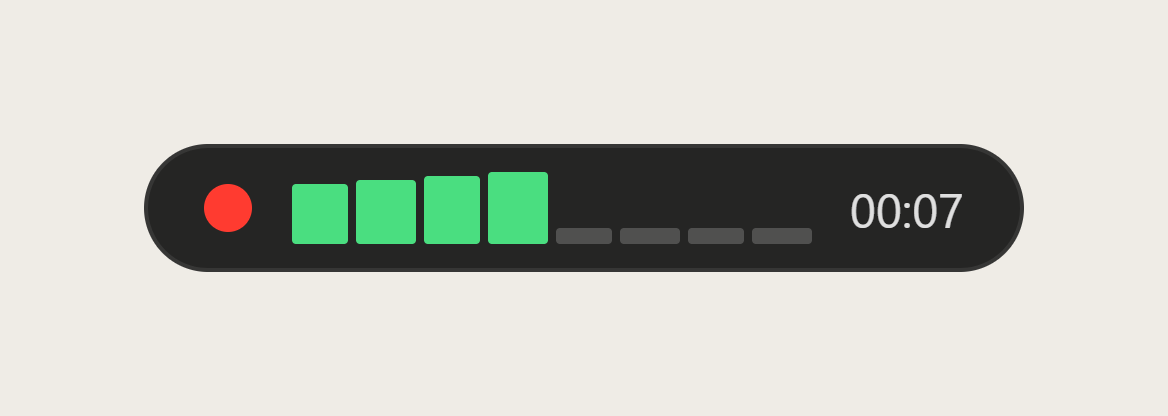
Typally, voice typing for Mac and Windows, is the app I build, and another route on a Mac. Hold your shortcut key, talk, let go, and the text appears where the cursor is. That can be Google Docs, Apple Notes or any other app. Its cleanup is on by default: it removes the ums and fixes the punctuation and capitals.
Typally needs an internet connection. On a Mac it needs microphone access too, in the same Privacy & Security list as above. It is one more app to install. It listens only while you hold the key, and the audio is discarded after transcription.
Download Typally free at typally.com for Mac or Windows. The free plan gives you 100 minutes a month and doesn't ask for a card.
What else do people ask when dictation is not working on a Mac?
Does Mac Dictation need an internet connection?
Sometimes. Apple's wording is "You may need an internet connection." The text below Dictation in Keyboard settings tells you.
Can Screen Time block Dictation?
Apple's Siri page says a family organizer can "restrict access to Siri & Dictation" on a child's device.
Is Typally free?
There's a free plan with 100 minutes of dictation a month, forever, and it doesn't ask for a card. Pro is $11.99 a month with a 14-day free trial, and the trial needs a card.