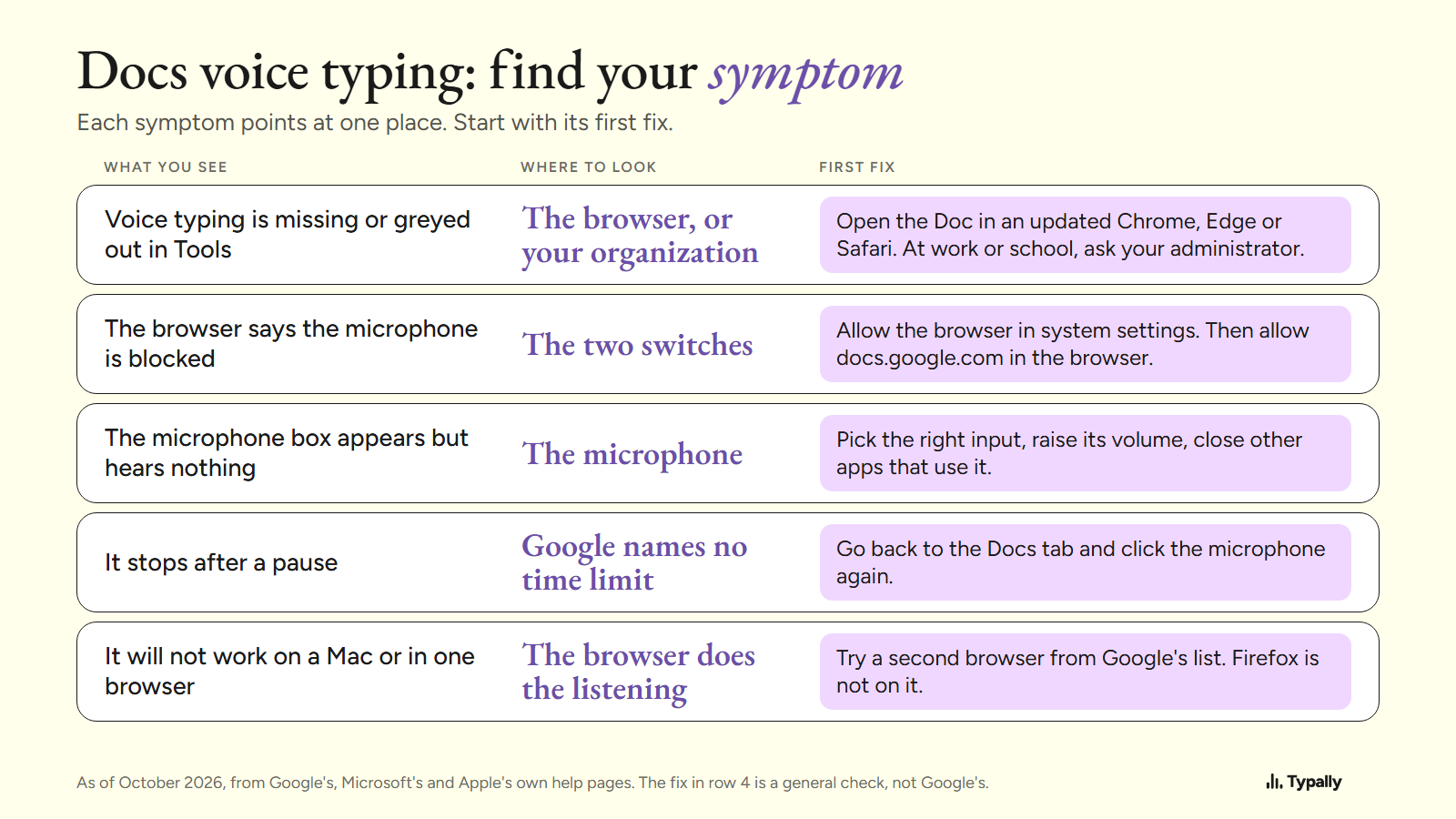
When Google Docs voice typing is not working, check 4 places: the browser, its site permission, the system's permission, and the microphone. Your symptom tells you which one to check first.
In short:
- Google's help page lists the latest versions of Chrome, Edge and Safari, as of October 2026. Firefox is not on the list, and guides that say it needs Chrome are out of date.
- Two switches must both allow the microphone: the system's switch for your browser, and the browser's switch for docs.google.com. Either one can block it.
- Google's page names no time limit for voice typing. If it stops after a pause, go back to the Docs tab and click the microphone again.
I build Typally, a voice typing app, and it comes up near the end. Each fix below comes from a help page by Google, Microsoft or Apple, opened on October 7, 2026, or is marked as a general check. I did not reproduce these faults. For the steps to start it, see our guide to voice typing in Google Docs.
Why is Voice typing missing or greyed out in the Tools menu?
Start with the browser. Google's steps say: "Open a document in Google Docs in a supported browser." Its voice typing page says the feature "works with the latest versions of" Chrome, Edge and Safari. Firefox is not on that list.
"Latest" is part of the rule, so update the browser first, then look under Tools again.
At work or school, the cause can sit outside your computer. Google's tip reads: "If this feature is not enabled in your organization, it may have been turned off by your administrator." Google's administrator page adds that an account ending in @gmail.com has no administrator, which rules this cause out.
The shortcut is narrower than the menu. Google's shortcut list marks "Start voice typing" as "(available in Chrome browsers)". In Edge or Safari, use the Tools menu. Our voice typing shortcut article has the keys.
Why does the browser block the microphone?
Because two switches sit between your microphone and the Doc, and both must say yes. The system has to allow your browser. The browser has to allow docs.google.com.
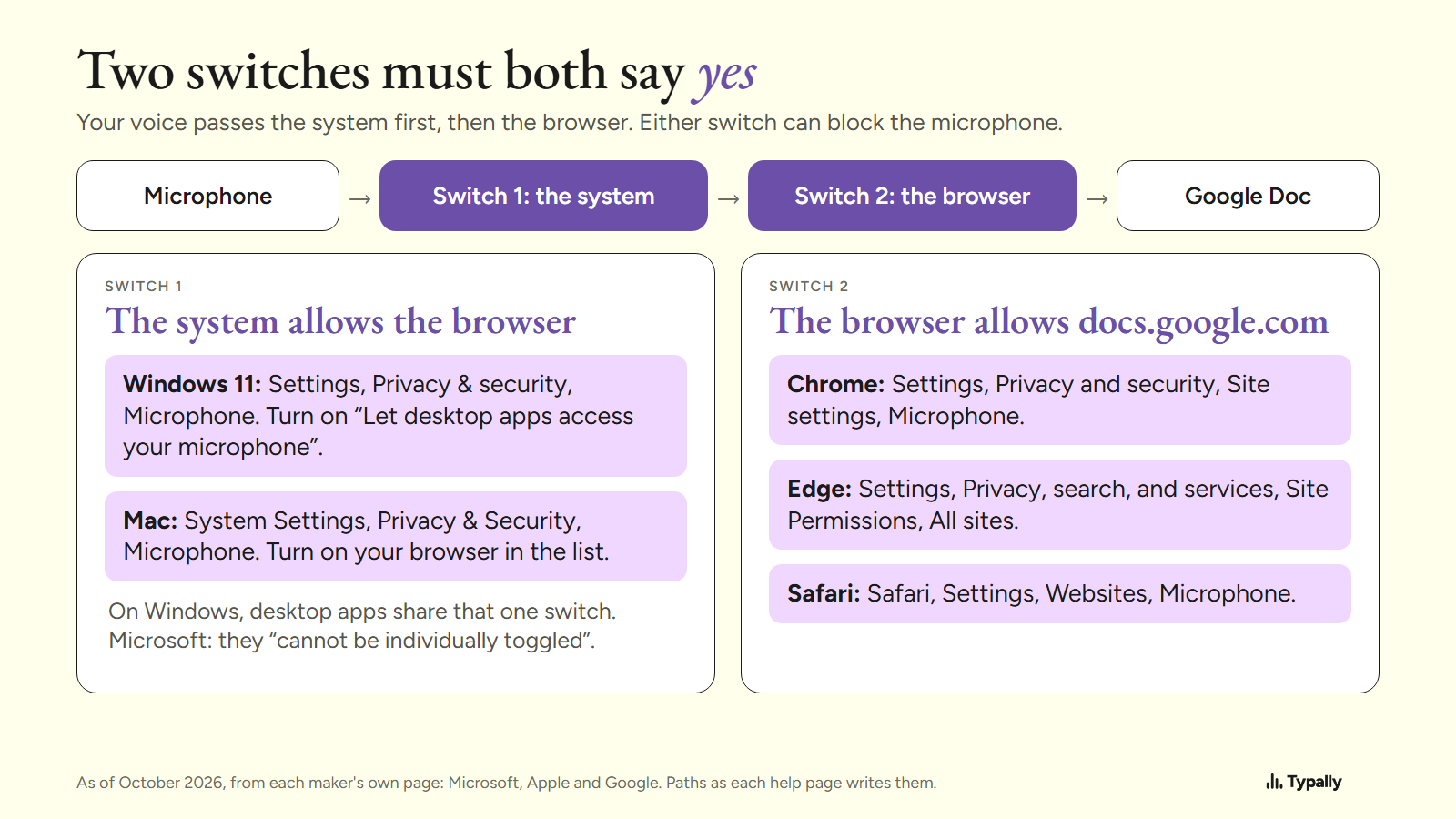
The system's switch. On Windows 11, Microsoft's privacy page gives the path: Start, Settings, Privacy & security, Microphone. It says desktop apps "cannot be individually toggled". One setting covers them: "Let desktop apps access your microphone".
On a Mac, Apple's microphone page says to open System Settings, click Privacy & Security, then Microphone. Turn access on for your browser in the list. These steps are Apple's.
The browser's switch. In Chrome, Google's site permissions page says to select View site information, left of the web address, then Site settings. Its microphone page has the longer route: Settings, Privacy and security, Site settings, Microphone. If docs.google.com sits under "Not allowed to use your camera or microphone", change it to "Allow".
Did it work a few months ago? Google writes: "To protect your data, Chrome removes permissions from sites you haven't used recently." A Doc you rarely open can need the permission again.
In Edge, Microsoft's page lists sites under Settings, Privacy, search, and services, Site Permissions, All sites. In Safari, Apple's Websites page gives Safari, Settings, Websites, Microphone, with 3 options: Ask, Deny and Allow.
At work, Chrome's page says your network administrator can set the microphone setting.
Why does the microphone box appear but hear nothing?
If both switches say yes and it still hears nothing, look at the microphone itself. Google's page covers 2 cases.
- "We're having trouble hearing you". Google lists 3 fixes: "Move to a quiet room", "Plug in an external microphone" and "Adjust the input volume on your microphone".
- "The microphone isn't working". Google says to check that it "is plugged in and is not being used by another application". Its last step is "Restart your computer."
Google's page says microphone settings are typically in the Control Panel on a PC and System Preferences on a Mac. The makers use newer names. Microsoft's microphone test is under Start, Settings, System, Sound: pick the input, then "Start test". Apple's sound page gives System Settings, Sound, Input, with an input volume slider.
A general check for Windows, mine, not Google's: press Windows key + H in any text box. Microsoft's voice typing page says it needs the internet, a working microphone and a cursor in a text box.
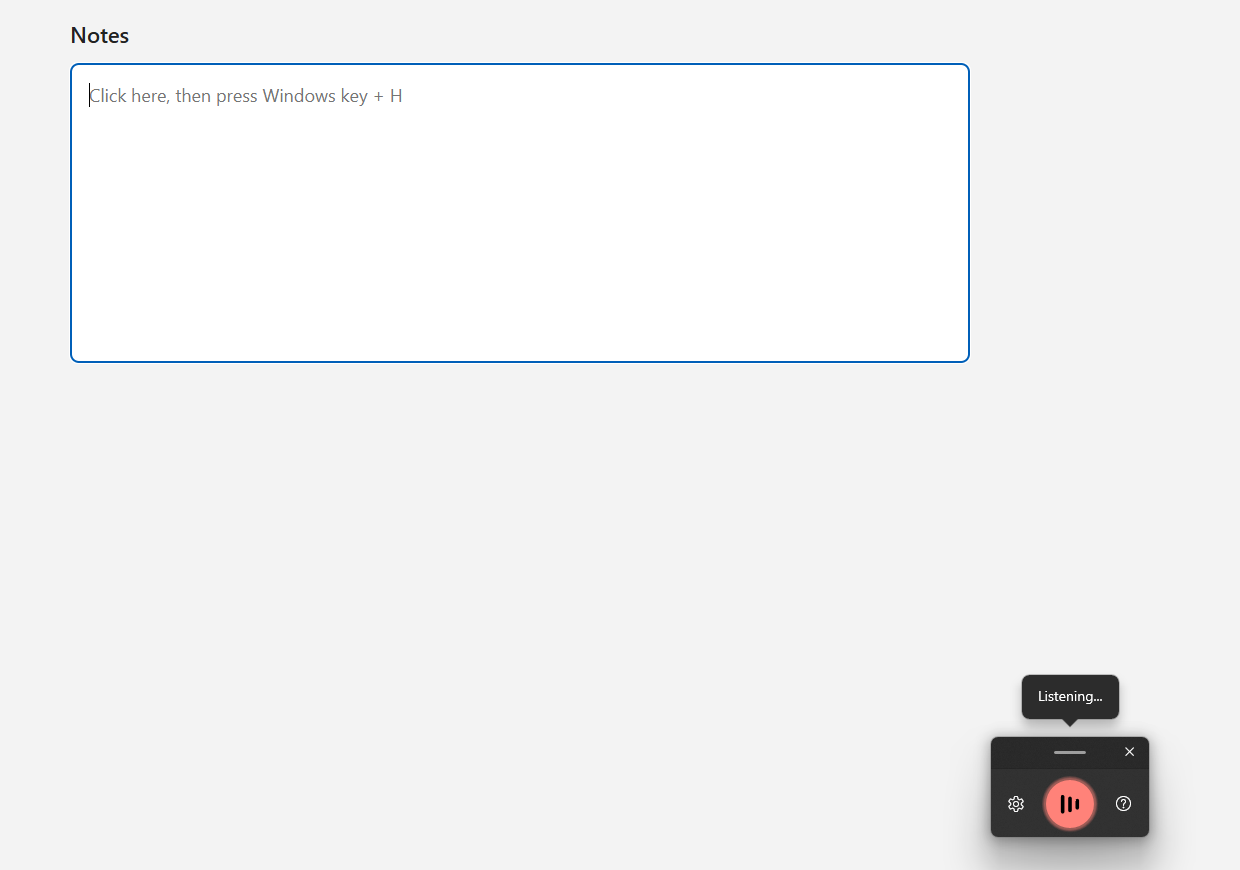
If it types your words, the microphone works. What is left is the two switches above. If it hears nothing either, see Windows voice typing not working.
Why does voice typing stop after a pause?
Google's page does not say. It names no time limit and no rule about silence, as of October 2026, so I have no number to give you.
It does say how voice typing ends:
- Google's step: "When you're done, click the microphone again."
- The spoken command "Stop listening" stops it.
- Fixing a typo should not stop it. Google says "you can move your cursor to the mistake and fix it without turning off the microphone".
Chrome's page adds one case: "If you're using a different Chrome tab or a different app, a site can't start recording." So start it from the Docs tab. If it went quiet, the general check is to return to that tab and click the microphone again.
Why won't it work on a Mac, or in one browser?
Because the browser does the listening, not Google Docs. Google's page says: "your web browser controls the speech-to-text service. It determines how your speech is processed and then sends the text to Google Docs or Google Slides."
So the same Doc can behave one way in Chrome and another in Edge or Safari. Trying a second browser from Google's list is a fair test. That is my reading of Google's sentence, not a tested result.
On a Mac, the two switches carry Apple's names: Privacy & Security for the browser, and Safari's Websites settings for the site. Safari is on Google's list, so a Mac does not need Chrome for this.
What else can type into a Google Doc by voice?
The system's own dictation, which is free and does not use the Tools menu. On Windows 11 that is Windows key + H. On a Mac it is Dictation, which Apple's Dictation page says lets you "speak to enter text anywhere you can type it".
Both live in the system, so Google's browser list does not bind them. I have not run either inside a Doc. If the Mac one fails, see Mac Dictation not working.
If Docs voice typing works after a fix, it may be all you need. It also takes spoken commands such as "Select paragraph", in English only. Dictation commands has the lists.
Where does Typally fit?
Typally, voice typing for Mac and Windows, types into a Google Doc from outside the browser. Hold your shortcut key, talk, let go, and the text appears where your cursor is. So the Tools menu, Google's browser list and the browser's site switch do not apply to it.
It has its own needs: an internet connection and a working microphone. A broken microphone stops it too. The same key works in Gmail, Microsoft Word, Notion and any other app. The cleanup is on by default: it removes the ums and fixes the punctuation and capitals.
It listens only while you hold the key, and the audio is discarded after transcription. I use it to prompt Claude and ChatGPT.
Download Typally free at typally.com for Windows or Mac. The free plan gives you 100 minutes a month and doesn't ask for a card.
What else do people ask when Google Docs voice to text is not working?
Does Google Docs voice typing work in Firefox?
Firefox is not on Google's list, which names the latest versions of Chrome, Edge and Safari as of October 2026. Open the Doc in one of those.
Why does Google Docs type "comma" instead of adding one?
Google's page warns that punctuation "might not be available in every language". It adds: "Voice commands are available only in English. The account language and document language must both be English."
Is Typally free?
There is a free plan: 100 minutes of dictation a month, forever, no card needed. Pro is $11.99 a month with a 14-day free trial, and the trial needs a card.