To dictate on a Mac, turn on Dictation in System Settings under Keyboard, then press the Microphone key or your Dictation shortcut. Talk, and press Escape when you're done.
In short:
- Turn Dictation on once: Apple menu > System Settings > Keyboard > Dictation. Start it with the Microphone key, your shortcut, or Edit > Start Dictation.
- In supported languages, Dictation adds commas, periods and question marks by itself. Say the other marks by name, such as "exclamation mark" or "new paragraph".
- Dictation stops when you press Escape, or after 30 seconds with no speech. Apple's pages say nothing about removing filler words such as "um".
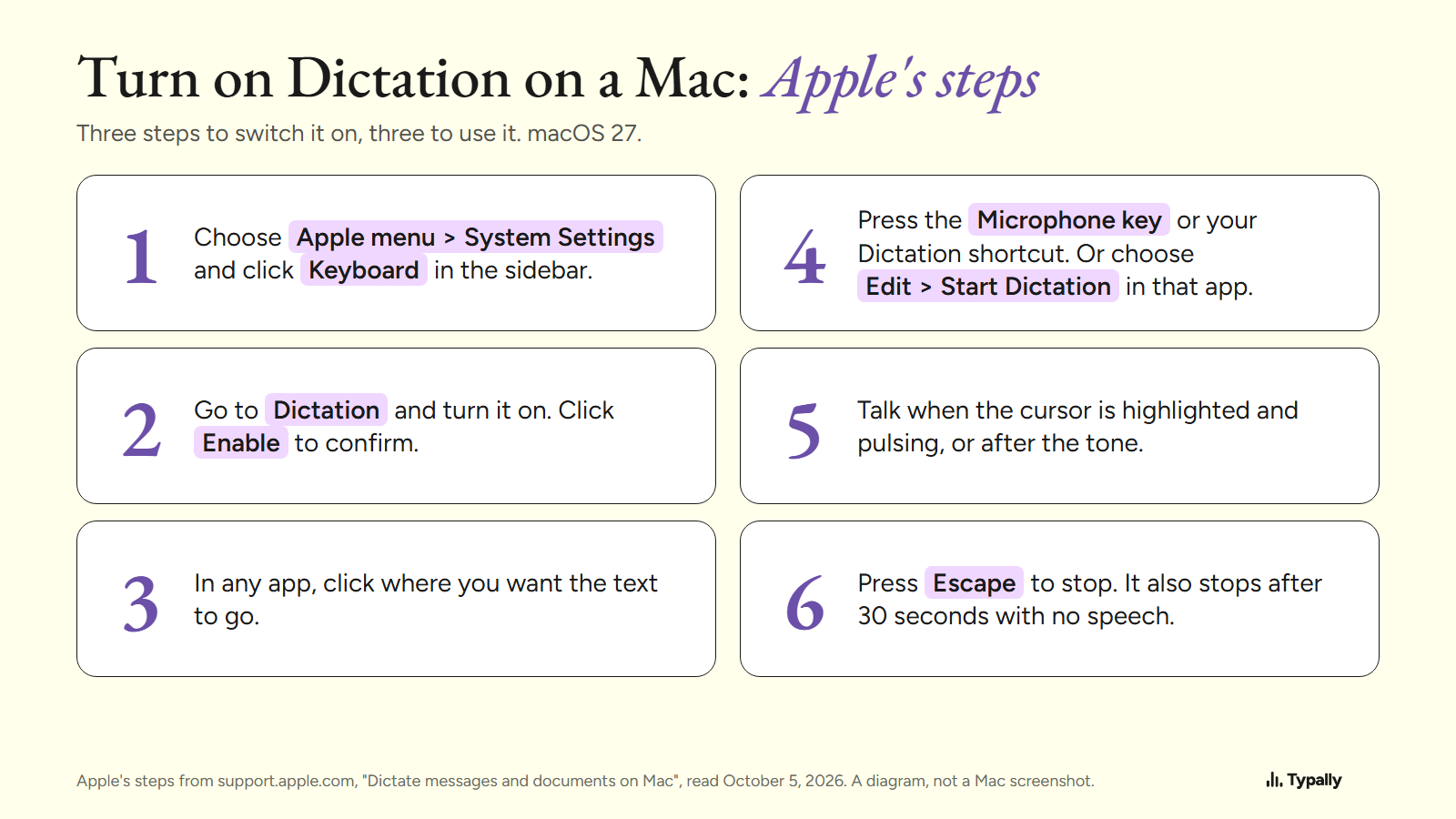
I build Typally, and it comes up near the end. By September 30, 2026, I had dictated 476,777 words with it, by its own count. I did not test Apple's Dictation for this article. Every step below is Apple's, for macOS 27, read on October 5, 2026.
How do you turn on Dictation on a Mac?
You turn it on in Keyboard settings. Apple's page Dictate messages and documents on Mac gives 3 steps:
- Choose Apple menu > System Settings, then click Keyboard in the sidebar.
- Go to Dictation and turn it on.
- Click Enable.
Your Mac may then ask about improving Siri and Dictation. Share Audio Recordings lets Apple store audio of what you dictate, and Apple "may review a sample of stored audio". Not Now declines.
How do you use Dictation once it's on?
Click where the text should go. Then start Dictation 1 of 3 ways. Press the Microphone key, if your keyboard has one in the row of function keys. Press your Dictation shortcut. Or choose Edit > Start Dictation.
Press and release the Microphone key. Holding it down starts Siri instead, if Siri is on. Talk when the cursor is highlighted and pulsing, or when you hear the tone.
On a Mac with Apple silicon, you can keep typing while you speak. Apple's page doesn't say what an Intel Mac does.
To stop, press Escape, the Microphone key or the shortcut. Apple adds that Dictation "stops automatically when no speech is detected for 30 seconds". So a 30-second pause ends it.
How do you add punctuation when you dictate on a Mac?
Dictation adds 3 marks by itself in supported languages, and you say the rest by name. Apple's words: "Dictation automatically inserts commas, periods, and question marks for you as you dictate." To switch that off, go to Dictation in Keyboard settings and turn off Auto-punctuation.
Apple's commands for dictating text include "exclamation mark", "colon", "semicolon", "hyphen" and "ellipsis". Pairs work too: "quote" and "end quote", "open parenthesis" and "close parenthesis". A period also answers to "point", "dot" and "full stop".
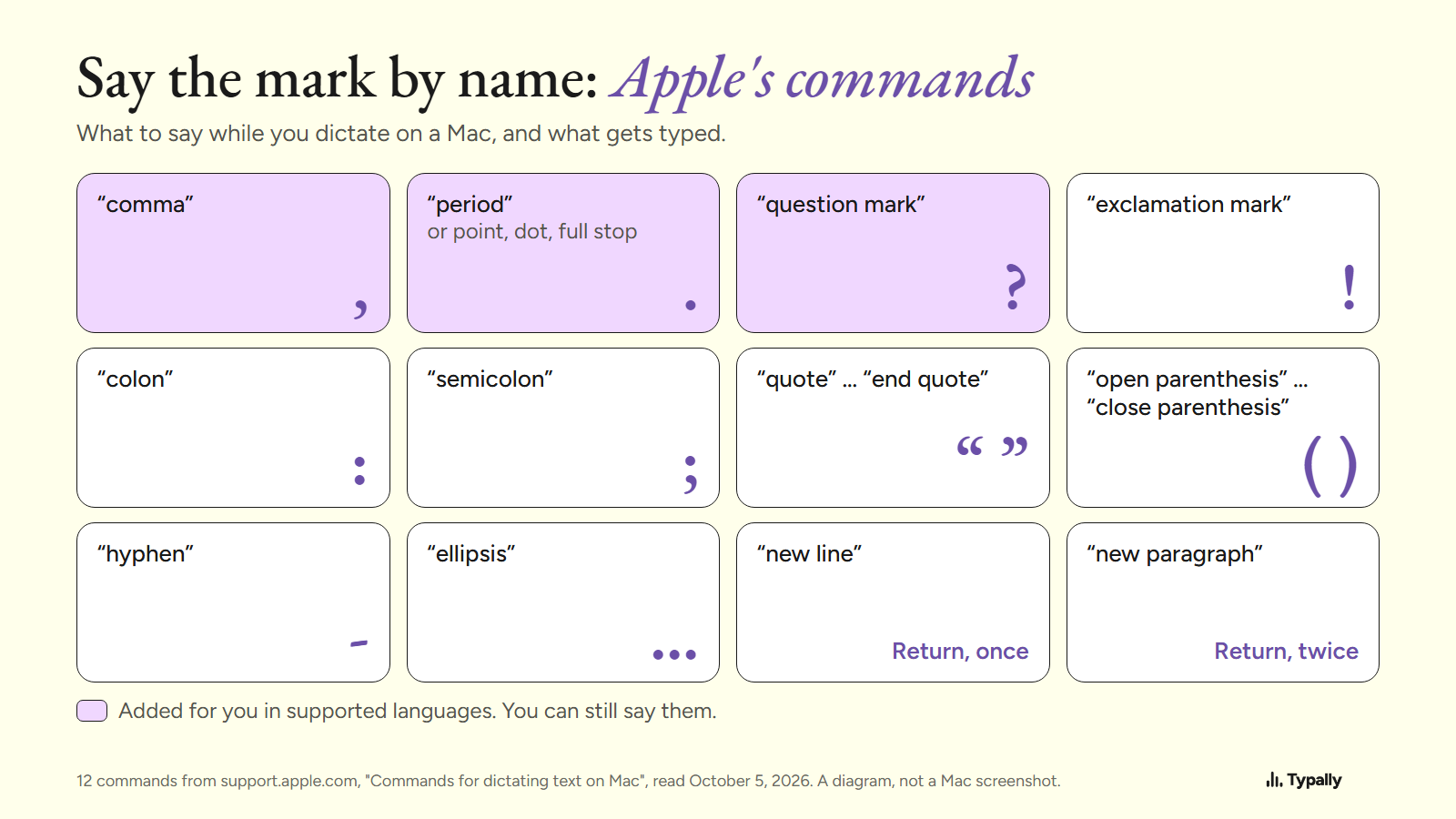
A new line or new paragraph shows up when you're done dictating, not while you talk. The same page has commands for capitals, such as "caps on" and "all caps".
How do you change the language or the microphone?
Both sit under Dictation in Keyboard settings. For a language, click the Edit button next to Languages, then select a language and region. With 2 or more set up, you can switch while dictating. Click the language next to the cursor, or press the Globe key if you have one.
For the microphone, use the pop-up menu next to "Microphone source". Automatic means your Mac listens to the device you're most likely to use. Apple's Feature Availability page lists the languages Dictation covers.
How is Voice Control different from Dictation?
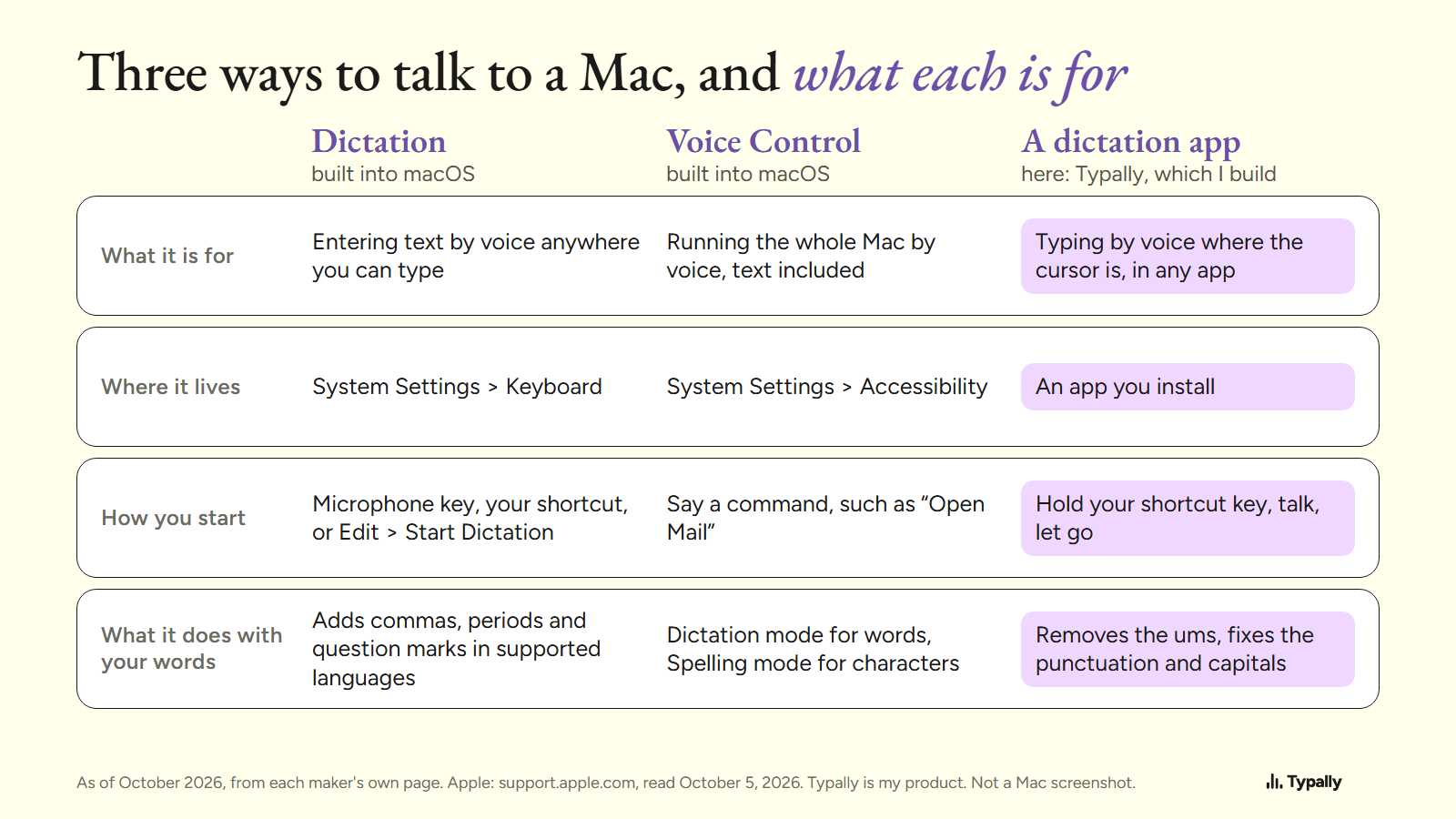
Voice Control runs the whole Mac by voice, and Dictation only enters text. Apple's Voice Control page gives commands such as "Open Mail", "Scroll Down" and "Click Done". Its settings are in System Settings, under Accessibility.
You can't run both at once. Apple's wording: "When Voice Control is on, you use Voice Control to dictate text; standard macOS Dictation isn't available." Voice Control has a Dictation mode for words and a Spelling mode for single characters. In languages that support it, it also takes a custom vocabulary of up to 1,000 terms.
What should you check when Dictation doesn't work on a Mac?
Check the setting first, then the language, the shortcut and the microphone. That is the order of Apple's list, If Dictation on Mac doesn't work as expected:
- Setting. Make sure Dictation is turned on in Keyboard settings.
- Language. Choose the correct language and region.
- Shortcut. Press the Dictation shortcut that your settings show.
- Microphone. A Mac with no internal microphone needs an external one, selected in Sound or Keyboard settings. If the Mac doesn't respond, raise the input volume in Sound settings, under Input.
- Noise. In a loud or echoing room, Apple suggests a headset microphone.
- Connection. Apple says: "You may need an internet connection." The text below Dictation in Keyboard settings tells you whether speech is processed on your Mac.
Where does Apple's Dictation stop?
It stops at 4 points, by Apple's own pages.
- Automatic punctuation covers fewer languages. By my count on October 5, 2026, the Feature Availability page lists 63 language and region entries for Dictation and 33 for auto-punctuation.
- The newer model needs a newer Mac. Apple's announcement of September 14, 2026 has the claim. "Dictation now captures what users say as polished text with greater precision, automatically handling capitalization, punctuation, and formatting as they speak." That needs a Mac with M3 or later and at least 12GB of unified memory. The Feature Availability page lists it for English only.
- Filler words aren't mentioned. None of these Apple pages says Dictation removes an "um".
- Custom words belong to Voice Control. Apple's Dictation page describes no vocabulary list.
Inside those limits, Dictation is the simple pick: it's built in and needs no install. For short messages in a supported language, it may be all you need. If you hit a limit, Dictation Software for Mac compares the apps. On a Windows PC, start with How to Voice Type.
Where does Typally fit?
Typally, voice typing for Mac and Windows, is the app I build. Hold your shortcut key, talk, let go, and the text appears where your cursor is. That can be Apple Notes, Pages, Apple Mail or any other app. Its cleanup is on by default: it removes the ums and fixes the punctuation and capitals.
One run from October 5, 2026. The input is an example I wrote with fillers in it. The output is what Typally's cleanup returned.
In: um so hi Dana uh thanks for sending the draft over like I read it this morning and I think the intro is uh a bit long you know so can we cut the first two paragraphs and um move the pricing table up and I'll send my notes by Thursday
Out: Hi Dana, thanks for sending the draft. I read it this morning and think the intro is a bit long. Can we cut the first two paragraphs and move the pricing table up? I'll send my notes by Thursday.
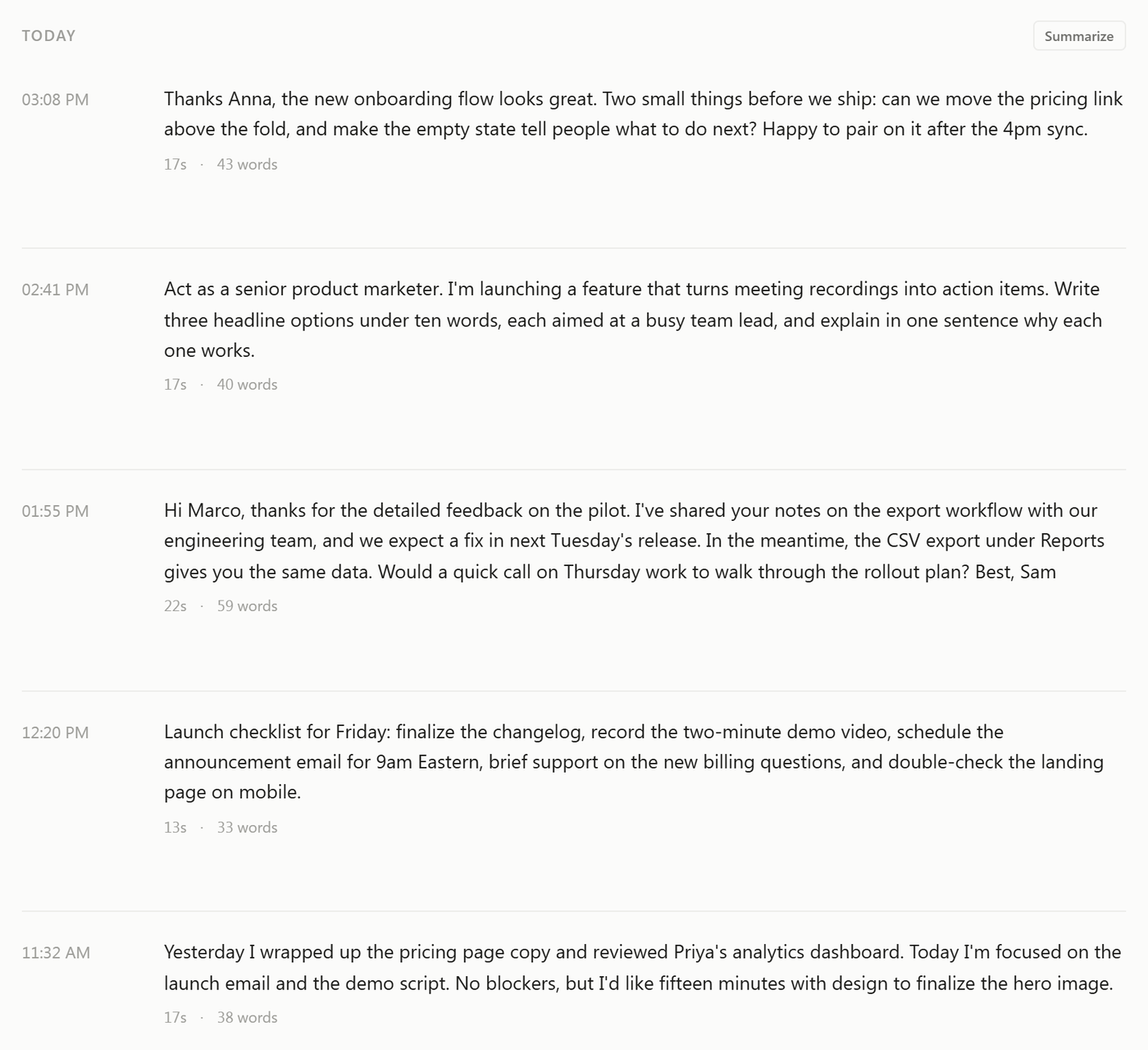
Typally needs an internet connection, and it's one more app to install. It listens only while you hold the key. The audio is discarded after transcription, and your history stays on your computer. To run the whole Mac by voice, Voice Control is the better tool.
Download Typally free at typally.com for Mac or Windows. The free plan gives you 100 minutes a month and doesn't ask for a card.
What else do people ask about dictating on a Mac?
What is the keyboard shortcut for Dictation on a Mac?
It's the Microphone key, or the shortcut chosen under Dictation in Keyboard settings. Apple's page for macOS 27 names no single default. To set your own, choose Customize in the Shortcut pop-up menu; Apple's example is Option-Z.
Does Mac Dictation have a time limit?
No. Apple says you can dictate "text of any length without a timeout". It stops by itself after 30 seconds with no speech.
Is Typally free?
There's a free plan with 100 minutes of dictation a month, forever, and it doesn't ask for a card. Pro is $11.99 a month with a 14-day free trial, and the trial needs a card.