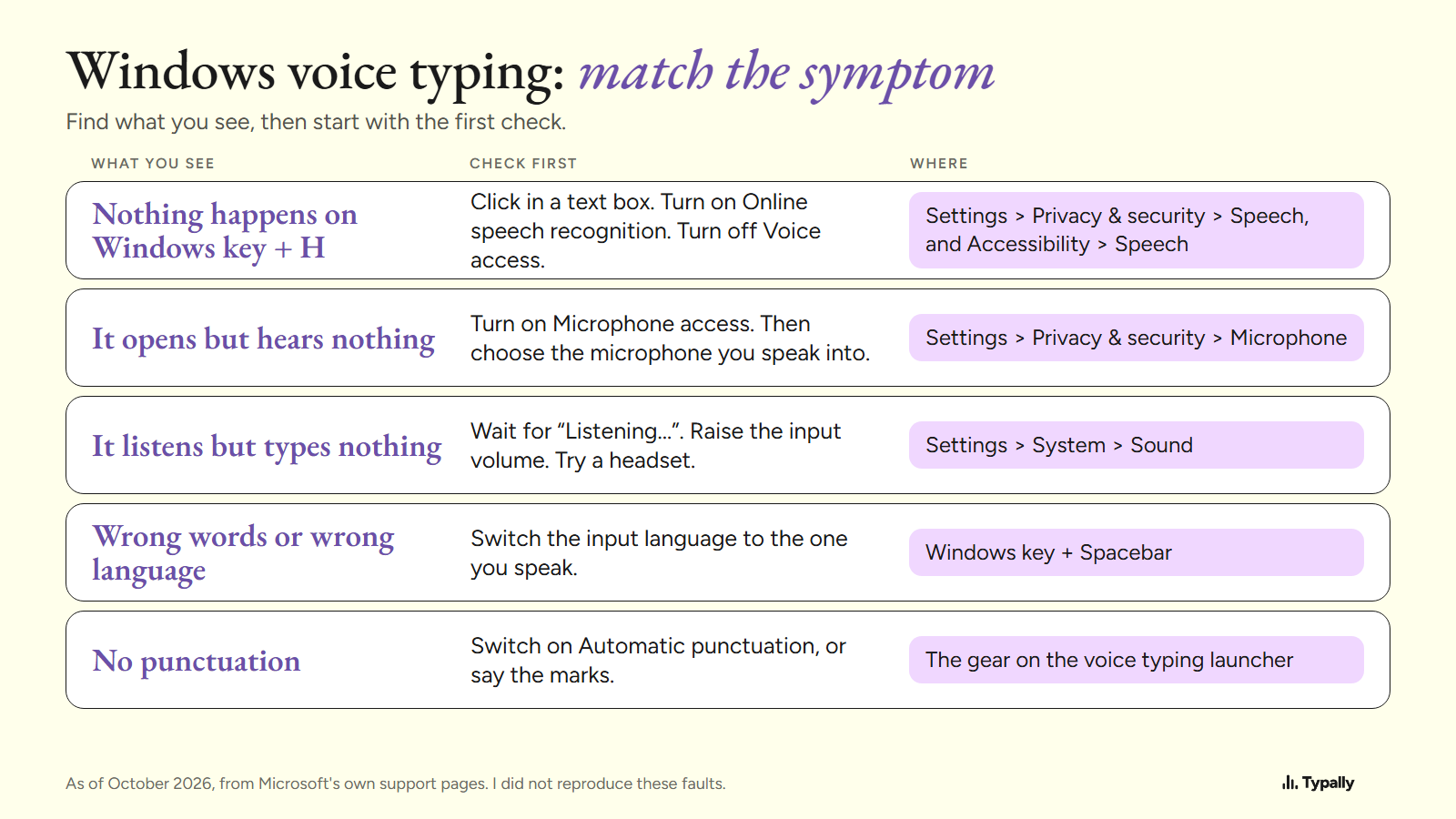
When Windows voice typing is not working, start with three checks: the internet connection, the microphone, and a cursor in a text box. Then match what you see to one of the 5 symptoms below.
In short:
- When Windows key + H does nothing, click in a text box. Then turn on Online speech recognition, and turn off Voice access if it is running.
- When the launcher opens and hears nothing, read its message. Microsoft lists two: one about microphone access, one about the language.
- For wrong words or missing punctuation, check two settings: the keyboard's input language (Windows key + Spacebar) and Automatic punctuation in the gear menu.
Those three checks are Microsoft's own conditions. Windows speech to text and voice typing are one tool: voice typing is Microsoft's name for it. I did not reproduce these faults. Each fix is from Microsoft's support pages, opened on October 7, 2026 and linked, or is marked as a general check.
For the steps and spoken commands, see Speech to Text on Windows 11. I build Typally, and it comes up near the end.
Why does nothing happen when you press Windows key + H?
Microsoft's pages point to three things to check: the cursor, one privacy switch, and Voice access.
- The cursor. Voice typing "can only be started if the cursor is in a text box", says Microsoft's Voice access FAQ. Click inside an email or a chat box, then press the keys.
- Online speech recognition. Voice typing "converts speech to text using online speech recognition", says Microsoft's privacy page. With that switch off, "only device-based features (such as Narrator) are available". Turn it on under Settings > Privacy & security > Speech.
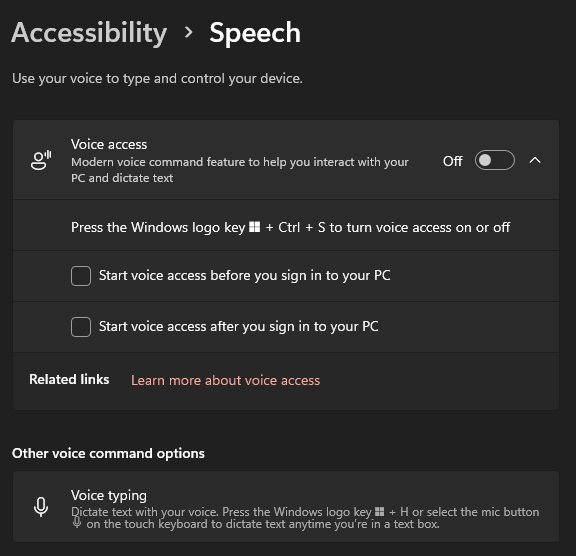
- Voice access. While it runs, Windows key + H only shows a message: "You can use voice access for typing too." Turn it off under Settings > Accessibility > Speech. That screen also has two boxes that start Voice access when you sign in; clear them.
One general check, not from Microsoft's pages: another program may have taken Windows key + H. My voice typing shortcut guide has the keys for each tool.
What do you do when the launcher opens but hears nothing?
Read the message on the launcher first. Microsoft's troubleshooting page lists two, as of October 2026.
- "Voice typing needs access to your microphone." Go to Settings > Privacy & security > Microphone and turn on Microphone access.
- "Voice typing isn't available in the current language." The language section below has the fix.
With no message, check which microphone Windows uses. Go to Settings > System > Sound > Input and "choose a device for speaking or recording". The launcher's gear menu has its own entry, Select default microphone.
Then test it, by Microsoft's steps. On the Sound screen, open the microphone, select Start test, speak, and play the sample back. Raise Input volume if it is quiet.
Microsoft's page on microphone problems adds two headset checks: the Mute button and the Bluetooth pairing. If Windows doesn't list the microphone at all, it says to uninstall the audio device in Device Manager and restart.
Why does voice typing listen but type nothing, or stop?
Microsoft's troubleshooting page gives two checks for "Text doesn't appear after speaking": adjust the microphone's input level, and swap a built-in mic for a headset.
Microsoft's voice typing page says to wait for the "Listening..." alert "before you start speaking".
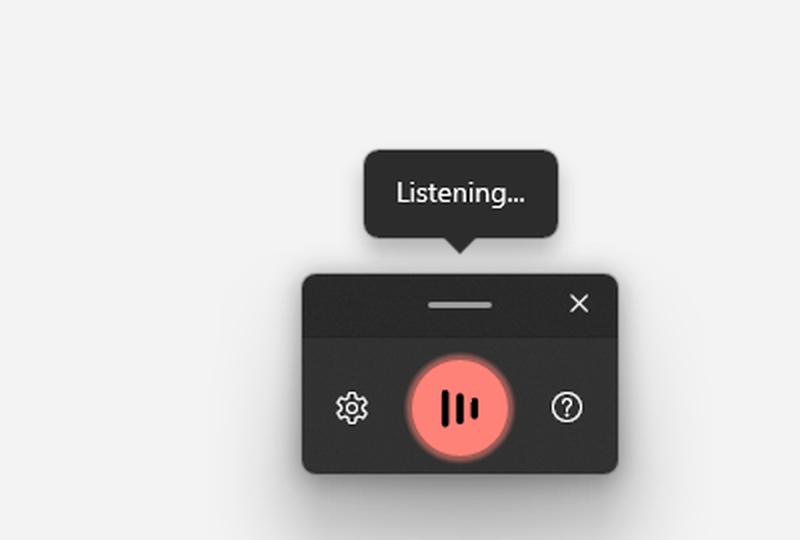
If it stops, press Windows key + H again. Microsoft's pages don't say how long voice typing listens through a silence. They do list 8 English phrases that stop or pause it, such as "stop listening" and "pause dictation". If commands fire at the wrong moment, change Wait time before acting in the gear menu.
Two last checks are from a moderator's answer on Microsoft's Q&A site (January 21, 2026), not from a support article. In services.msc, confirm that Touch Keyboard and Handwriting Panel Service and Text Input Management Service are running, then try a new user account.
Why does voice typing type the wrong words or the wrong language?
Voice typing follows your keyboard's input language, so check that first. Microsoft's voice typing page says: "To switch voice typing languages, you'll need to change the input language you use." Press Windows key + Spacebar and choose the language you are speaking.
If the words are still wrong, Microsoft's troubleshooting page says to "Move to a quieter location" and to try a headset.
The message "Voice typing isn't available in the current language" means the language is outside Microsoft's list. That list has 46 languages and regional variants, by my count on October 7, 2026. To add one, open Settings > Time & language > Language & region and select Add a language. Microsoft says its optional features, "including speech recognition, aren't required for voice typing to work".
Why is there no punctuation in Windows voice typing?
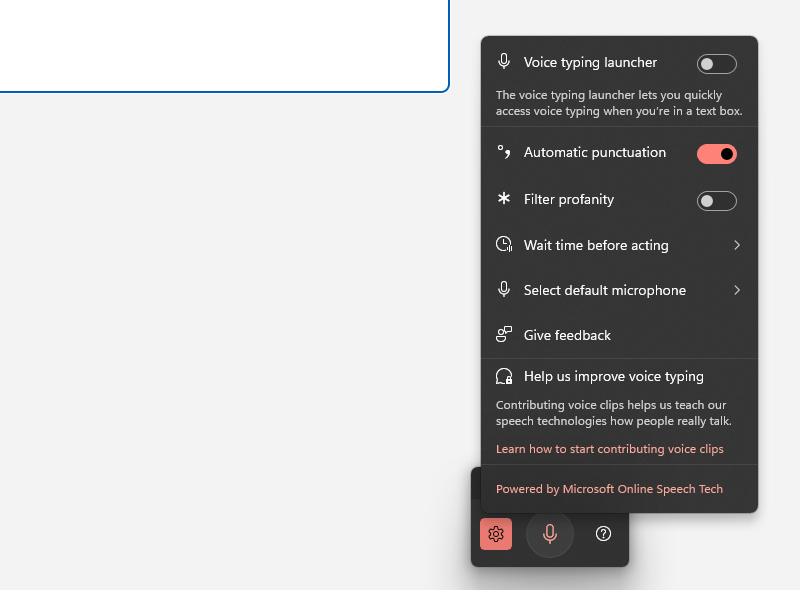
Open the gear on the launcher and look at the Automatic punctuation switch. Microsoft says it lets voice typing "automatically insert punctuation based on what you’re saying". Its page doesn't say whether the switch starts on or off.
You can also say the marks, and here the language matters. Microsoft's English punctuation list has more than 50 entries. For 10 languages, among them Lithuanian, Latvian and Slovak, it has four marks (period, comma, question mark, exclamation mark) and a new line.
For Thai the list has the new line only (my counts of Microsoft's lists, October 7, 2026). Dictation commands has the words to say.
Where does the built-in tool stop, and what else is on your PC?
Voice typing needs a connection and a text box every time, by Microsoft's own conditions. For short notes in one of its 46 languages it may be all you need.
Windows 11 has a second built-in tool, Voice access. Microsoft's FAQ says it lets people "control their PC and author text using only their voice and without an internet connection". Its first setup needs a connection, and it needs Windows 11, version 22H2 or later.
If the voice typing that fails is the one inside Google Docs, see Google Docs voice typing not working.
Where does Typally fit?
Typally, voice typing for Mac and Windows, is the app I build. It is another route when the built-in tool keeps failing. It doesn't repair Windows voice typing. Hold your shortcut key, talk, let go, and the text appears where the cursor is, in any app: Outlook, Word, Slack, ChatGPT.
It shares two needs with voice typing: an internet connection and a working microphone. A muted headset or a dropped connection stops both. It has 100 dictation languages, and its cleanup is on by default: it removes the ums and fixes the punctuation and capitals.
Try the fixes first, because Windows key + H is already on your PC. My Typally and Windows voice typing comparison says when it is enough. Download Typally free at typally.com. The free plan gives you 100 minutes a month and doesn't ask for a card.
What else do people ask when Windows voice typing is not working?
Why is Windows 10 voice typing not working?
Run the same checks. On Windows 10 the tool is called dictation, and its switches sit under Settings > Privacy > Speech and Settings > Privacy > Microphone. Microsoft's Windows 10 instructions say dictation commands are "available in US English only", and Windows 10 support ended on October 14, 2025.
Why does Windows + H voice typing work only some of the time?
Microsoft's support pages don't cover this. On Microsoft's Q&A site in March 2026, a user wrote: "I can turn it on 20 times and it won't type anything, and the 21st time I turn it on it does work." A moderator replied that voice typing "still relies on online speech services, so intermittent behavior can happen".
Why is the Fluid dictation option dimmed?
Fluid dictation is for Copilot+ PCs and English, as of October 2026. Microsoft says the option "appears dimmed" until its language model has downloaded. You can follow the download under Settings > Windows Update.