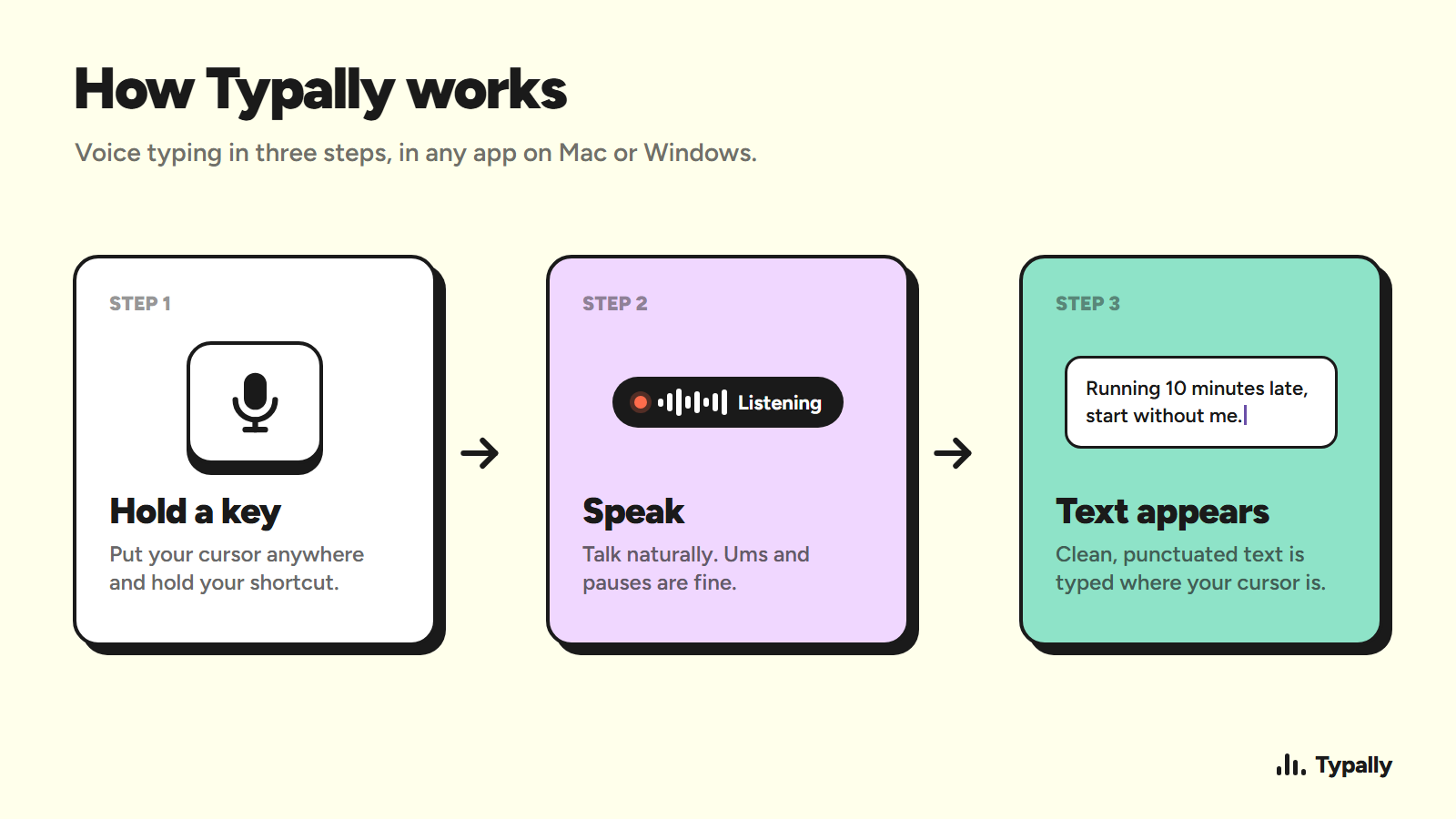
Typally’s comparison graphic puts speaking at 150 words per minute and typing at 40. That gap makes voice input worth a try, though code has plenty of symbols that speech can mangle. Start by choosing the right setup, then use voice where it helps most: prompts, comments, and repeatable tasks.
Table of Contents
Step 1: How do you choose a voice-coding setup?
For coding by voice, first decide whether you want to dictate regular text, speak commands, or combine both. General dictation puts your words into a focused text field. Command-based tools use set phrases to control actions such as moving the cursor or pressing keys.
Typally runs on Windows and Mac, and you can add custom terms to its vocabulary. Add the names from your codebase so dictation recognises them. The guide to voice dictation for Claude Code shows how to use it for longer coding prompts.
Other names that appear in voice-coding discussions include Talon, Serenade, and Voice Attack. Treat these as starting points for your own research, not proof that a tool supports your editor or operating system. Check those details before you build a workflow around one.
Plan for voice input to work like a dictation layer: put the cursor in the right field, speak, then review the text.
Pick a setup that matches your first task. For longer prompts, use dictation. For cursor movement or edits, try a command system. You can add the other method once the first feels steady.
Step 2: How do you set up voice input for your coding environment?
Begin with the simplest setup you can test today. Built-in dictation can put speech into an editor or an AI assistant prompt. On Windows, select a text field and press Windows + H to open voice typing. On Mac, turn on Dictation in System Settings, under Keyboard, then use the shortcut shown there.
Choose a quiet spot and a mic that captures your voice clearly. Then open your editor and test dictation in a comment or scratch file. Don’t start in a live terminal. A stray word in a shell prompt can become a command if you submit it.
You can try voice typing free in your browser, without signing up, before setting up a desktop app. Speak a short coding prompt, then check how the transcript handles your variable names and punctuation.
Set up one app at a time. Confirm the microphone permission, choose an input device, and test a short phrase. Then speak a sentence with a code term, such as “add a cache timeout.” Check whether the tool hears the key words correctly before you try a longer prompt.
For AI coding tools, click the prompt field before you speak. I built Typally after the voice input in AI coding tools kept cutting off after about a minute. You can use the same approach for other assistants; the ChatGPT dictation guide walks through speaking into its prompt field.
By now you should have a working mic, a clear start-and-stop action, and one test field where you can safely review the result.
Step 3: What voice commands should you learn first?
For voice coding, learn a few commands that save effort without putting your files at risk. A small set is easier to remember than a long list, and it gives you room to learn how your tool hears your voice.
Start with commands you can check at a glance:
- Move: go to the next line, start of line, or end of line.
- Select: select the current line or a named word.
- Edit: undo, copy, paste, or delete the selection.
- Switch: open search or switch to a named file.
Use “undo” and “cancel” early. They give you a way back when the speech system hears the wrong phrase. Save commands that change or remove code until you’ve tested them in a scratch file.
For repeated code, consider a short macro only if your tool supports one. A command such as “new test outline” might enter a small, known block of text. Read it after it appears. Don’t assume a spoken macro will fit every language or project style.
Keep similar commands distinct. If “select line” and “delete line” sound alike in your setup, rename one or remove it. A command system should feel plain and predictable, not like a secret language you have to recite perfectly.
Try each phrase three times in the same editor field. If recognition varies, change the words or use the keyboard for that action. Your first command set should be short enough to recall without a cheat sheet.
Step 4: How do you write and edit code by voice?
Voice works best when you use it to express intent, then inspect what the tool writes. For symbol-heavy code, dictating every bracket and operator can turn one small function into a long correction session.
Try this workflow with an AI coding assistant. Focus its prompt box, then describe one change in plain language. Say what should change and how you’ll check it. For example: “Add a history panel beside the existing notes panel. Follow the same layout. Keep the current notes panel unchanged.” Read the prompt before you send it.
AI assistants such as Claude, Cursor, and GitHub Copilot can turn a clear request into code or suggest edits. They can also get details wrong. Review the result in the editor, run the relevant test, and ask for a focused correction if needed.
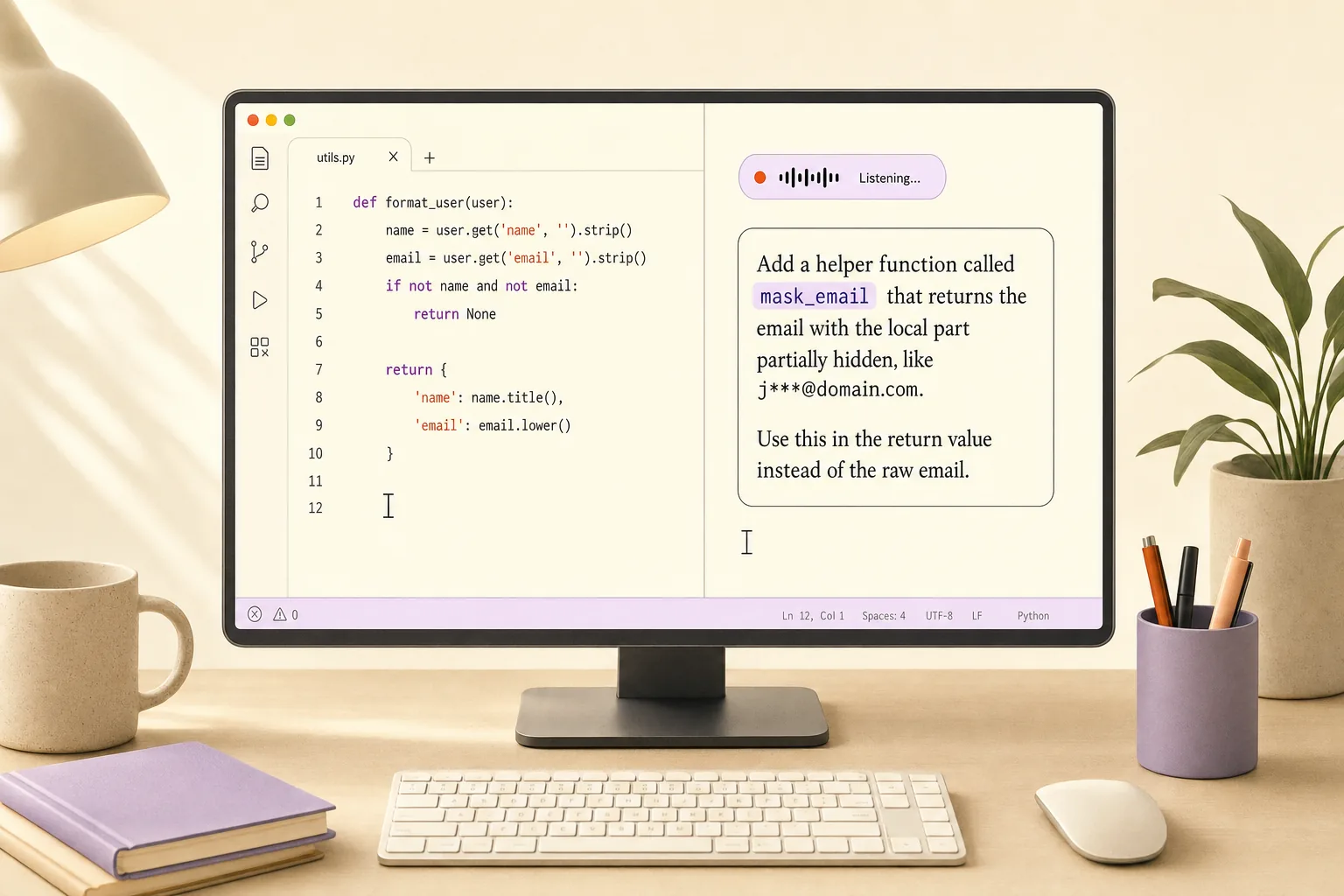
Direct dictation still has useful places in a coding workflow. Use it for comments, docstrings, commit messages, and notes about a bug. Those are prose, so speech usually has less punctuation to fight. Keep dense source code in the keyboard workflow unless your command setup handles its syntax well.
When you dictate code or a prompt, pause between ideas. Say the function’s goal first. Then state any limits or edge cases. This gives you a clean moment to check the text before you ask the assistant to act.
For more control, mix input methods. Speak the request, use the keyboard to fix a name, then run the test yourself. That’s a useful workflow even if you never dictate a full line of source code.
Step 5: How do you make coding by voice safer and more reliable?
Speech recognition makes mistakes. A tool can hear a library name as a common word, miss a symbol, or put text in the wrong field. Treat every result as a draft until you’ve read it.
Build a quick check into each session:
- Look at the cursor before you start speaking.
- Use a short phrase first, then confirm where the text landed.
- Read the full prompt or comment before submitting it.
- Review generated code and run the right test before you keep it.
Make dangerous actions hard to trigger. Don’t bind a vague phrase like “clean this up” to a delete command. Keep commands that delete files, commit changes, or run terminal actions off your voice list until you have a clear confirmation step.
For sensitive code or client details, check where a tool processes audio before you use it. Some voice tools process speech locally; others send audio to a service.
Also watch for accidental dictation in a terminal. Speak into an editor or prompt field first, review the text, and paste it only when you’re ready. A terminal can act on input in ways a note field won’t.
Voice can also help people who have pain or limited mobility use a computer with less hand movement. It doesn’t have to replace a keyboard or mouse. A hybrid setup lets you speak when that feels easier, then switch to another input method when speech is a poor fit.
Expect to tune the workflow. Add a custom term when a name keeps getting misheard. Remove a command that triggers by accident. Reliability comes from short tests and review, not from trusting every transcript.
FAQ
Can you write code by voice?
Yes, but most people get better results by speaking prompts and comments instead of dictating every symbol. Describe the change to an AI coding assistant, then inspect its code. Voice input can also help with navigation or repeatable actions when your tool supports clear commands. Keep the keyboard nearby for precise edits.
How do I turn on voice typing on Windows or Mac?
On Windows, select a text field and press Windows + H. On Mac, open System Settings, then Keyboard, and turn on Dictation. Use the shortcut shown in those settings. Check the microphone permission and input device if no text appears.
Is voice coding accurate enough for programming?
Voice input can work well for plain-language prompts, comments, and notes. It’s less suited to dense code full of symbols and exact names. Add custom vocabulary for project terms if your tool supports it, then review the result before you run or submit anything. A hybrid voice-and-keyboard workflow is often the most dependable place to start.
Can I use voice input with an AI coding assistant?
Yes. Put the cursor in the assistant’s text field, dictate a clear request, then read it before you submit. State the change you want and any limits the assistant should follow. The assistant may still misunderstand your codebase, so check its edits in the editor and run the relevant test.
Is coding by voice useful if I have hand or wrist pain?
It can reduce how much you need to type, especially for prompts, comments, and notes. You don’t need to switch to voice for every task. Start with work that’s easy to say, keep other input methods available, and stop if speaking or holding a dictation key causes discomfort.
Conclusion
Start with voice prompts and comments, then add commands as you learn your setup. Download Typally free for Windows or Mac: hold a key, say your prompt, and Typally types it into the focused app. The free plan includes 100 minutes a month.